Site banners
- Use it to show announcements and promotions on your studio’s website, with a start date and an end date.
- In the menu it is under Website > Site banners: the page has two sections, Editor and Library.
- The most common task: press New banner, choose the position, write the title, set the dates, then press Publish.
What it is
A module to announce news on the website: an open day, a promotion, a new course, a closure.
Every banner has a position, a title, an optional short text, an optional link, and a publishing period. Flo shows it on the site only inside that period.
It belongs to the Digital growth category, because it leads site visitors to an article, a product, or a property.
When it is visible
It is visible when the studio wants to tell site visitors something for a limited time.
The Site banners section is in the Website > Site banners menu and on the Administration page. It appears when banners are enabled for your studio.
- The administrator creates, edits, publishes, and deletes banners.
- A professional sees the section only if the administrator grants the Site banners permission. Editing and deleting need their own permissions.
- Clients do not see the section.
Dependencies
It can be connected to:
- Blog, to link a banner to an article
- Catalog, to link a banner to a product
- Properties, to link a banner to a property
- Multilingual, to write the texts in more languages
A link type appears only when its module is enabled.
The Library
The Library lists every banner of the site.
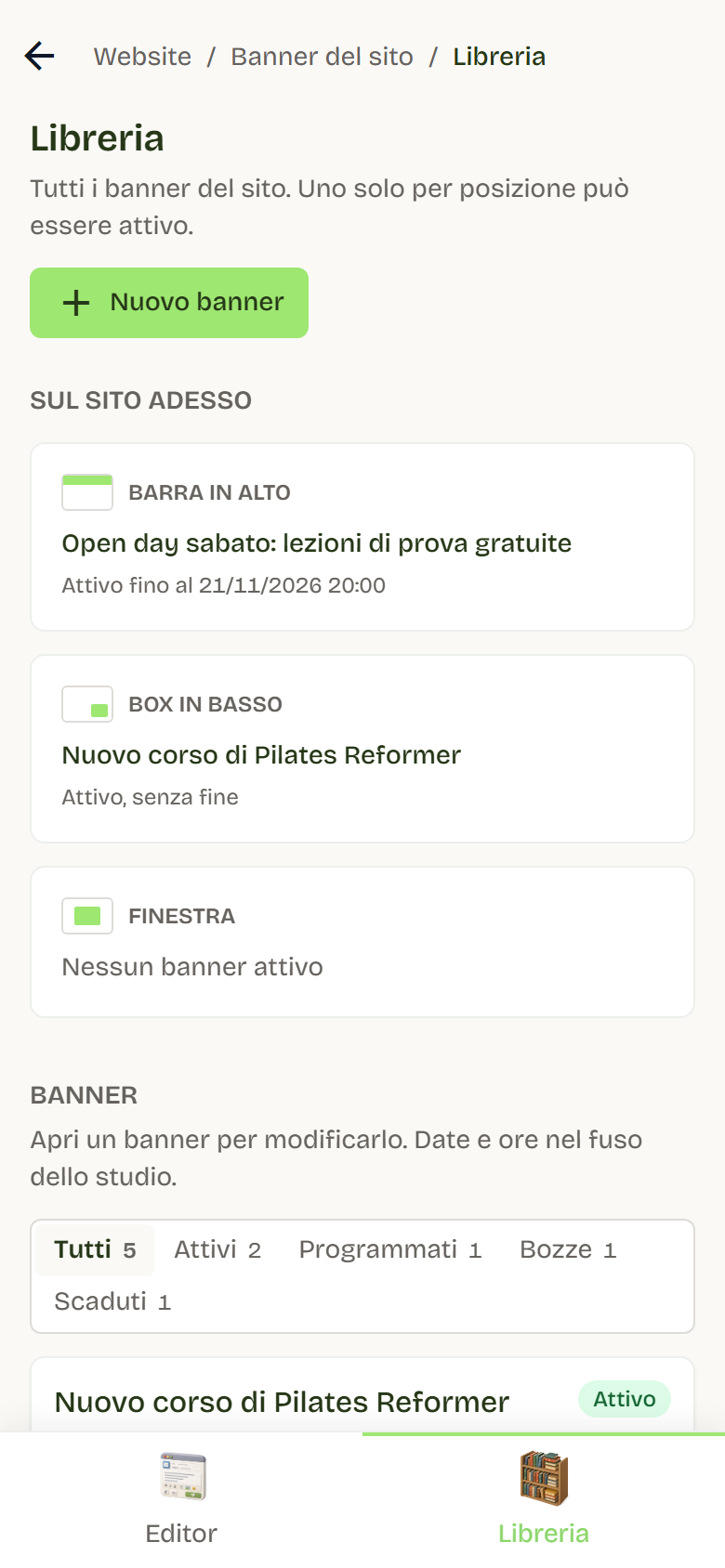
- On the site now: for each position, the active banner and how long it stays active.
- Filter by status: shows only Active, Scheduled, Drafts, or Expired banners.
- Not shown in the Position column: your site does not show that position, so the banner is not visible.
- Unavailable in the Link column: the linked content is no longer public, so the banner is not visible.
- Press Open to edit a banner.
The three-dot menu on each row offers more actions:
- Use as a base: creates a draft copy.
- End now: removes an active banner from the site at once.
- Return to draft: takes the banner out of publishing without deleting it.
- Delete banner: deletes the banner. This cannot be undone.
Banner statuses
| Status | Meaning |
|---|---|
| Draft | Not published. Visible only in Flo. |
| Scheduled | Published, but the start date has not arrived yet. |
| Active | On the site now. |
| Expired | The end date has passed. |
A position can have only one active banner at a time.
Create a banner
- Press New banner.
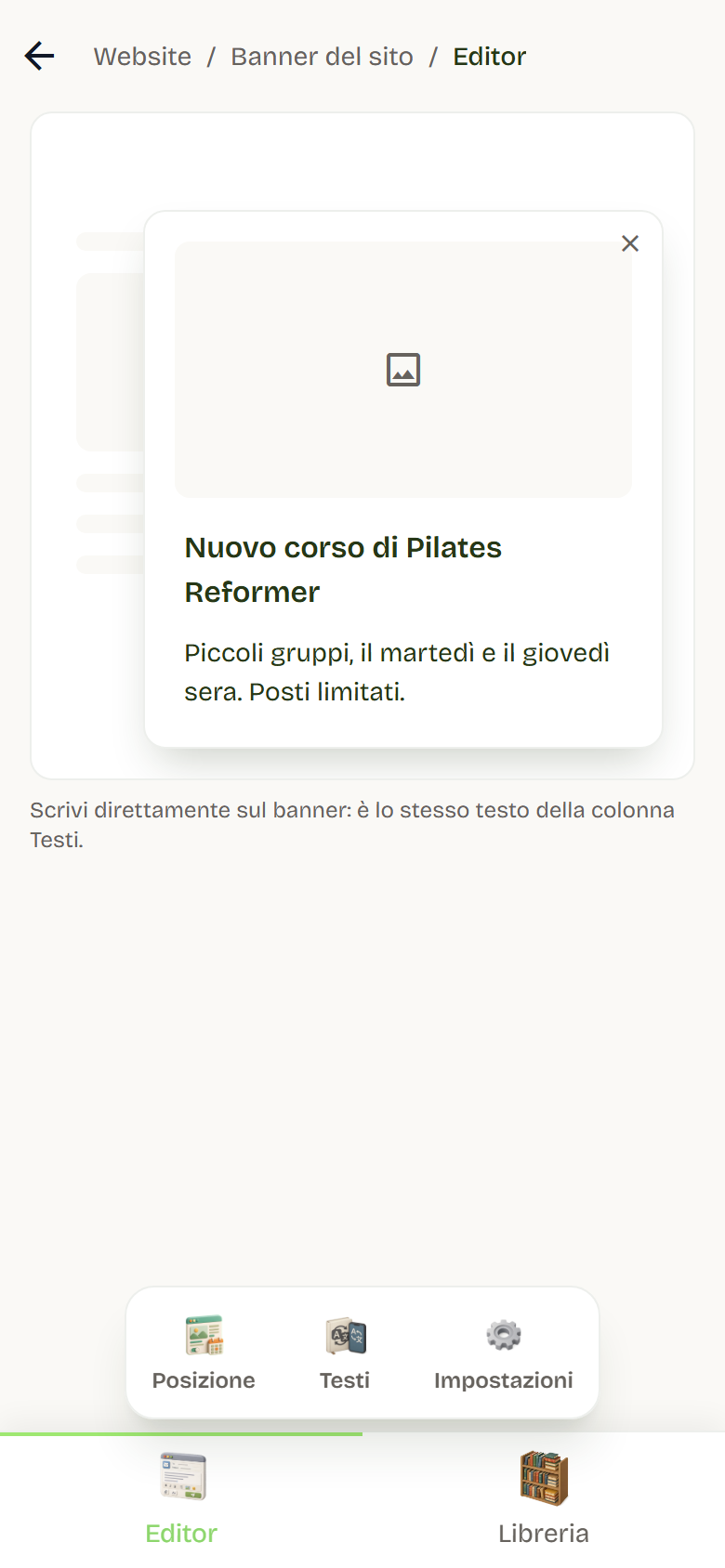
- In Position, choose where it appears: Top bar, Bottom box, or Window. Positions your site does not show are switched off.
- Write the Title straight on the preview or in the Texts section. The short text is optional.
- In Settings, choose the Link: an article, a catalogue product, a property, or an external link.
- In Publishing, set the Start date and, if needed, the End.
- Press Save to keep it as a draft, or Publish.
Dates and times follow the studio time zone.
Long texts and languages
The counter under each field shows the recommended length. Past that length the banner wraps onto more lines on phones; past the maximum it does not save.
If the site has more languages, choose the Text language in Texts and write each translation. Empty fields show the main language text.
On the phone
On the phone the editor shows the preview full screen. The Position, Texts, and Settings buttons each open a panel from the bottom, with Save and Publish at the foot. To see it, switch this page’s screenshots to the Mobile view.
Frequently asked questions
I published the banner but I cannot see it on the site. Check the Library. Not shown means your site does not show that position. Unavailable means the linked content is not public. If the status is Scheduled, the start date has not arrived yet.
Can I reuse last year’s banner? Yes. In the row menu press Use as a base, then change the dates and publish.
I returned an expired banner to draft: why are the dates empty? Flo clears a period that has already ended, so the banner does not go straight back to expired. Set new dates before you publish it.