Getting started
Here you'll find how to create your account, how to sign in to Flo and where the main things are.
All you need is the app address your studio gave you, for example a link in an email or on the studio's website.
Create your account
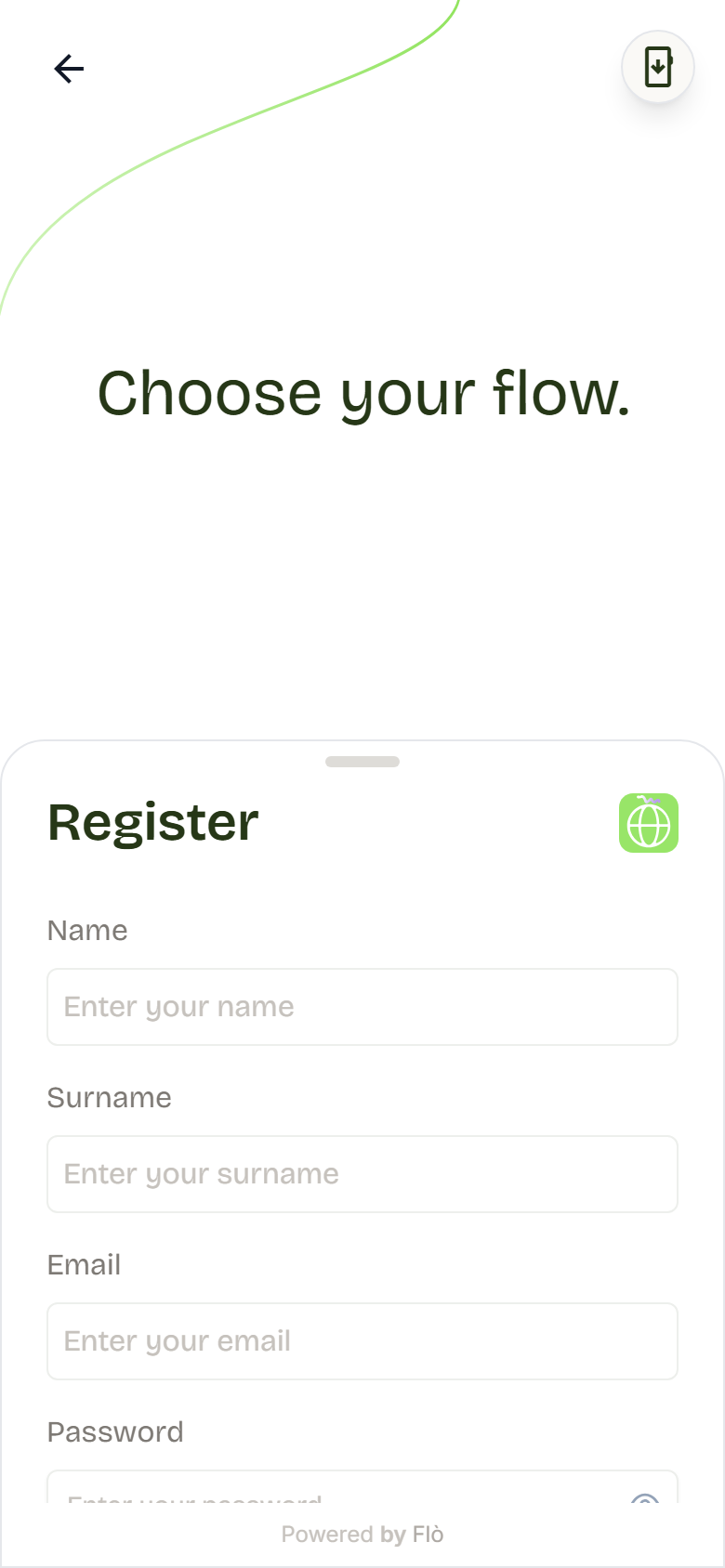
- Open the app address your studio gave you.
- Press Sign Up.
- Type your first name and surname.
- Type your email address.
- Choose a password and type it twice.
- If the studio asks for it, type your phone number.
- Tick the boxes for the Terms and conditions and the Privacy policy.
- Press Create account.
- Open your email: you've received a message with a link. Press it to activate your account.
- Go back to the app and sign in with your email and password.
The password must be at least 8 characters long.
Some studios create their clients' accounts themselves. Ask the studio to create yours: you'll receive an email to sign in.
Look in your Spam or Junk folder. If the link has expired, ask the studio to send you a new one.
Sign in to Flo
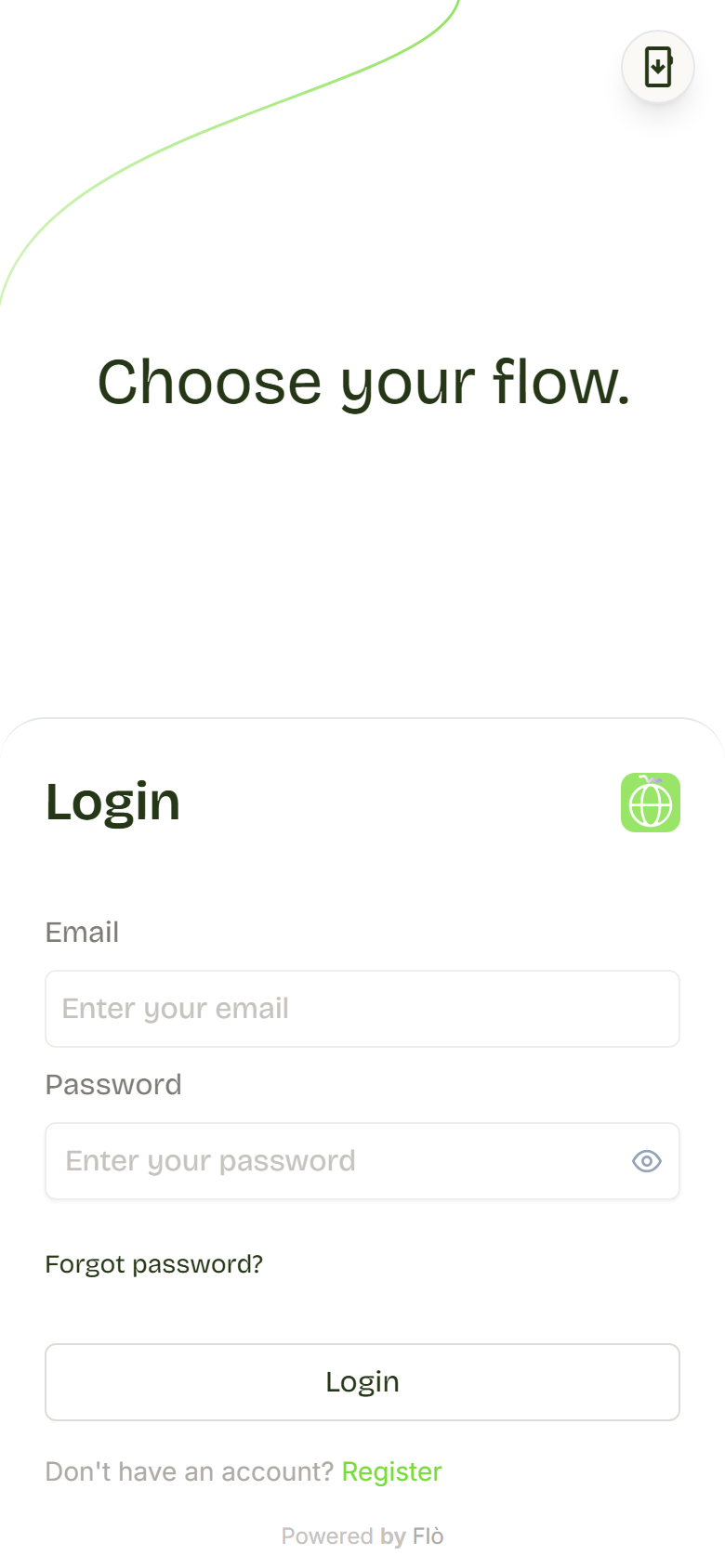
With email and password
- Type your email.
- Type your password.
- Press Sign In.
If you've signed in before, the page reminds you how you did it last time.
With a code sent by email
On some studios' websites you can sign in without a password: you receive a code by email and type it on the page.
- Type your email.
- Press the button to receive the code.
- Open your email: you'll find a 6-digit code.
- Type the code on the page.
The code is valid for 30 minutes and works only once. If it doesn't work, ask for a new one and always use the latest one you received.
With Google or Apple
If the studio allows it, you'll see Continue with Google or Continue with Apple above the fields. Press the button and choose your account.
- If you already have a Flo account with the same email, you get into your usual account.
- If you're new, Flo creates the account for you.
If the Google button doesn't appear, sign in with email and password.
I forgot my password
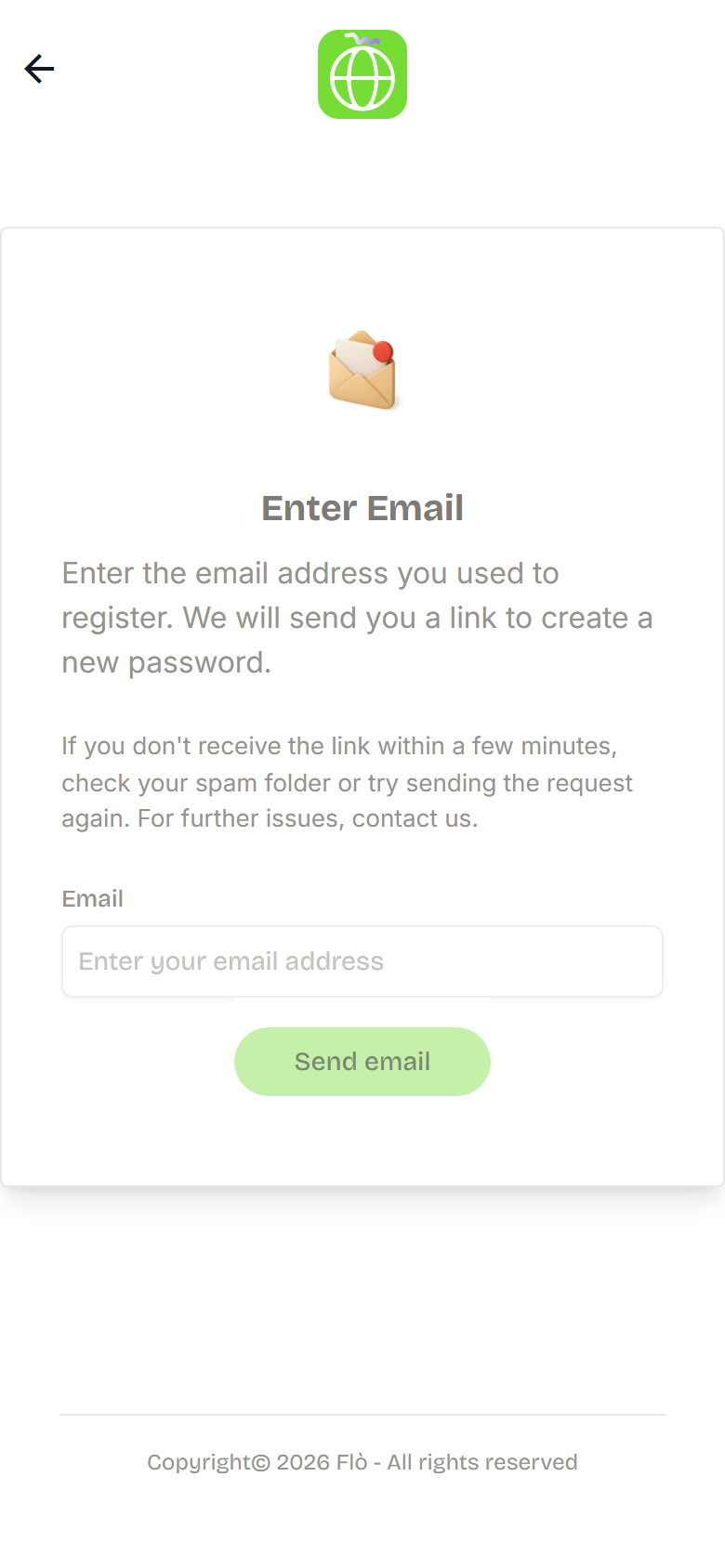
- On the sign-in page press Forgot password?.
- Type your email.
- Press Send email.
- Open your email and press the link you received.
- Choose a new password.
- Sign in with the new password.
The link doesn't arrive? Wait a few minutes and look in your Spam folder. Then try again.
After the change, Flo signs you out of your other phones and computers: there you'll need to sign in again with the new password.
The app asks me to change my password
It happens the first time you sign in with a temporary password, for example one the studio gave you. Choose a new password, then sign in again with it.
Staying signed in
Flo keeps you signed in even when you close the app. After a long time without using it, it asks you to sign in again.
When you press Log out, you're signed out of Flo on all your devices.
Find your way around
As soon as you sign in you see the Home: a greeting, your next bookings and your subscriptions.
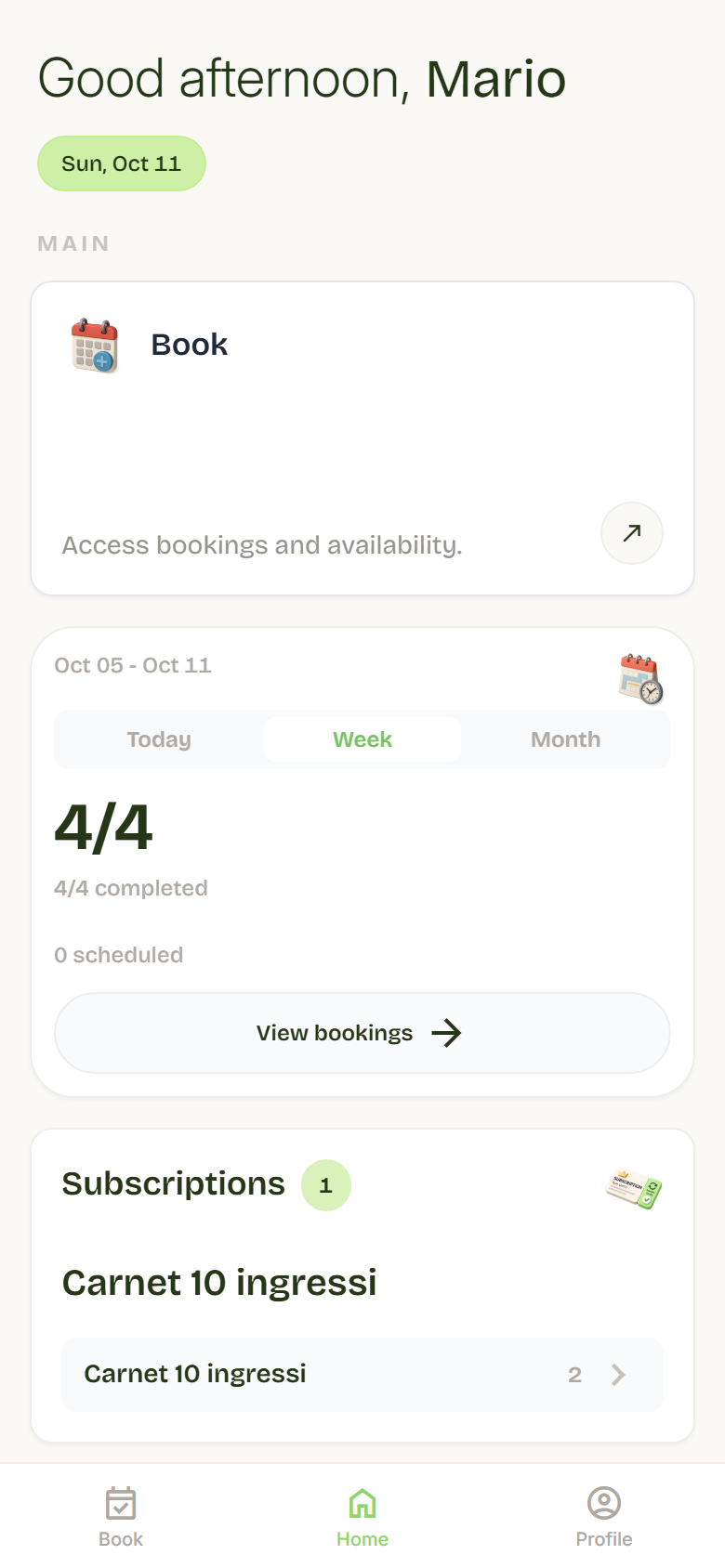
On a phone the items are in the bar at the bottom. On a computer they're in the column on the left.
- Home: your week at a glance.
- Book: the studio's lessons. From here you book and see the week's timetable.
- Profile (on a computer, your name at the bottom left): your bookings, your subscriptions and your details.
Change language
Flo is available in Italian and English. To change language:
- Open Profile.
- Open Account.
- At the bottom, under Language, choose IT or EN.
Flo remembers your choice.