Your account
In your account you'll find your bookings, subscriptions, invoices and details.
Open your account
- On a phone: tap Profile in the bar at the bottom.
- On a computer: press your name at the bottom of the column on the left.
The Profile page opens with the list of sections. Tap the one you need.
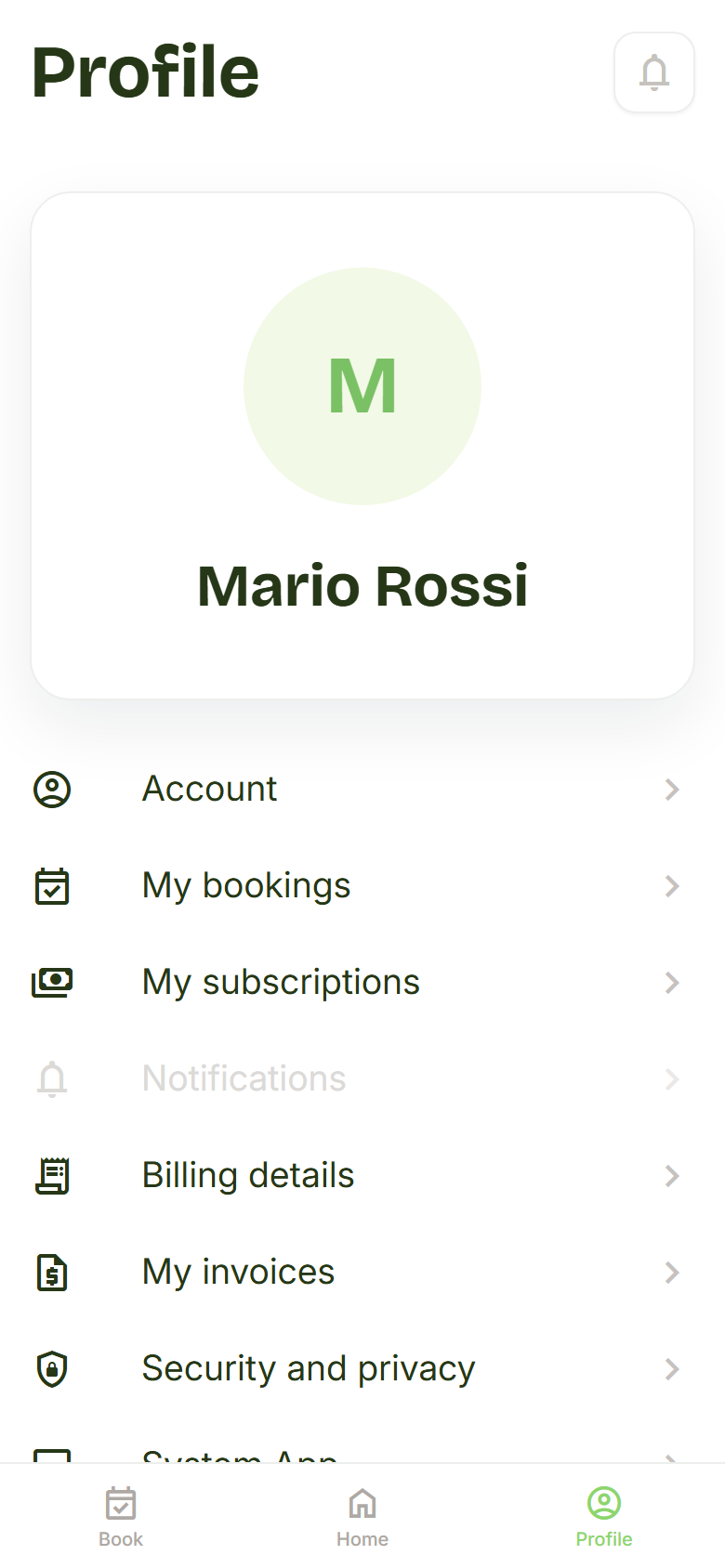
What you'll find in each section:
- Account: name, email, phone and language.
- My bookings: the lessons you've booked, upcoming and past.
- My subscriptions: subscriptions, passes and entries left.
- Billing details: who receipts and invoices are made out to.
- My invoices: the invoices in your name.
- Security and privacy: your data, the terms and deleting your account.
- System App: app updates, installing the app and logging out.
Notifications is marked "Coming soon": it doesn't open yet.
Your details
The Account section shows your name, email and phone. If the phone is missing, it reads "Not specified".
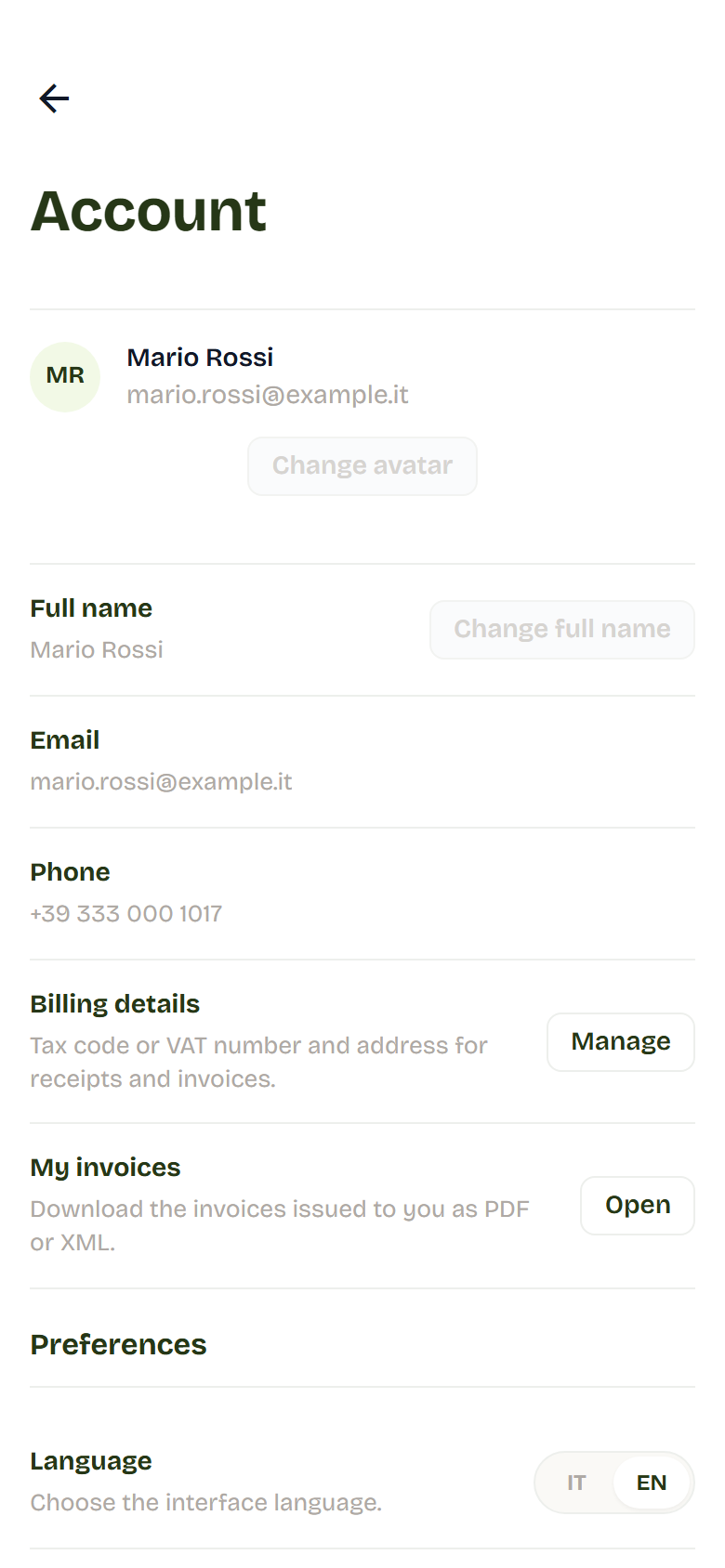
For now you can't change your name, surname or photo yourself: ask the studio.
At the bottom, under Language, choose IT for Italian or EN for English.
My bookings
The page has two tabs:
- Upcoming: the lessons still to come. The nearest one is open; press View all to see the others.
- Past: the lessons you've already done.
Each booking shows the lesson, day, time, instructor and location. Press Details to see the address and who made the booking too.
To cancel a lesson press Cancel and confirm. Read Cancel a booking first: if you cancel late, the entry doesn't come back.
My subscriptions
Here you see your subscriptions and passes, how many entries you have left and until when they're valid.
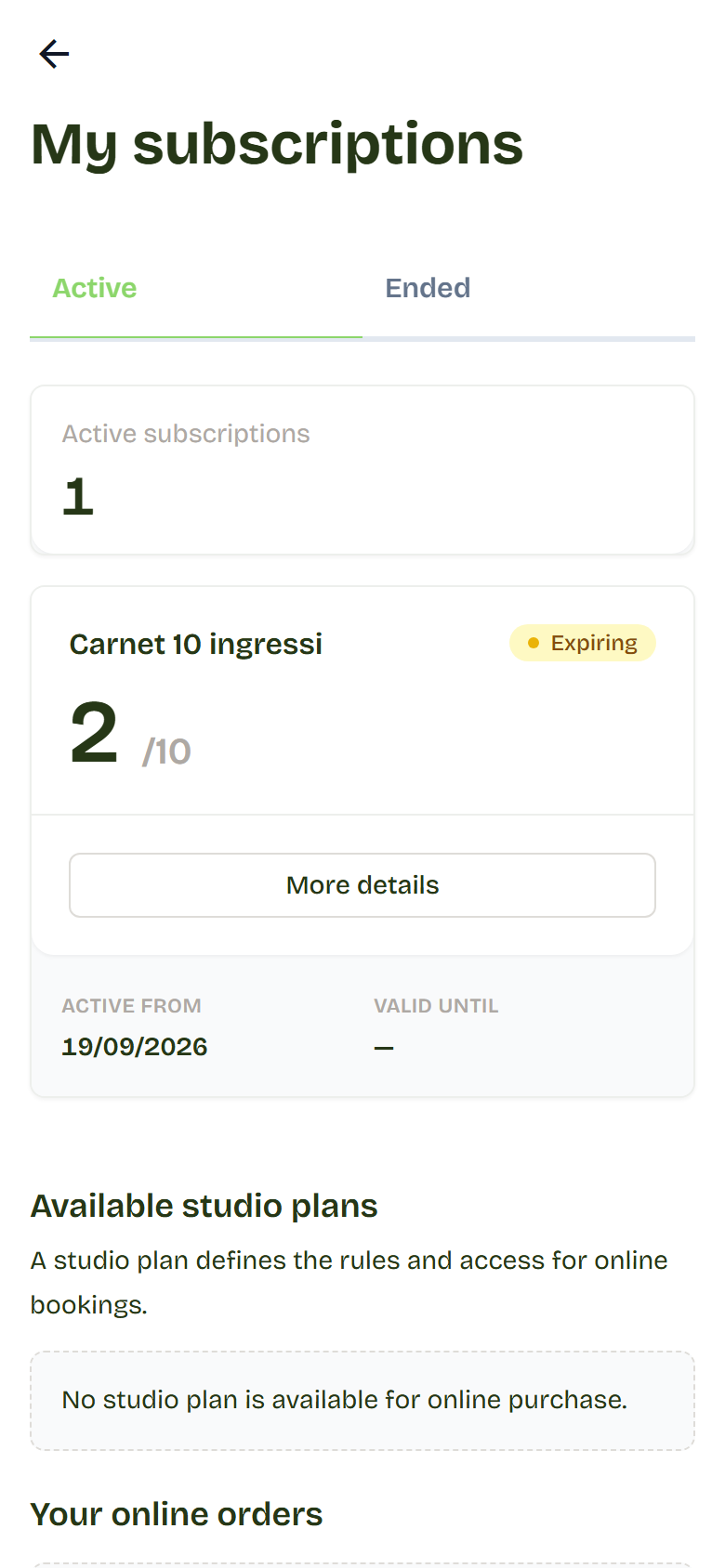
The page has two tabs:
- Active: the subscriptions you can use.
- Ended: the finished ones, with the reason.
Each subscription shows the entries left (the ∞ symbol means unlimited), the dates and a coloured label:
- Active: you can use it.
- Expiring: it's about to end.
- Expired: it's over.
- Suspended: it's on hold, you can't book.
- Pending: it hasn't started yet.
- Cancelled: the studio closed it.
See the details
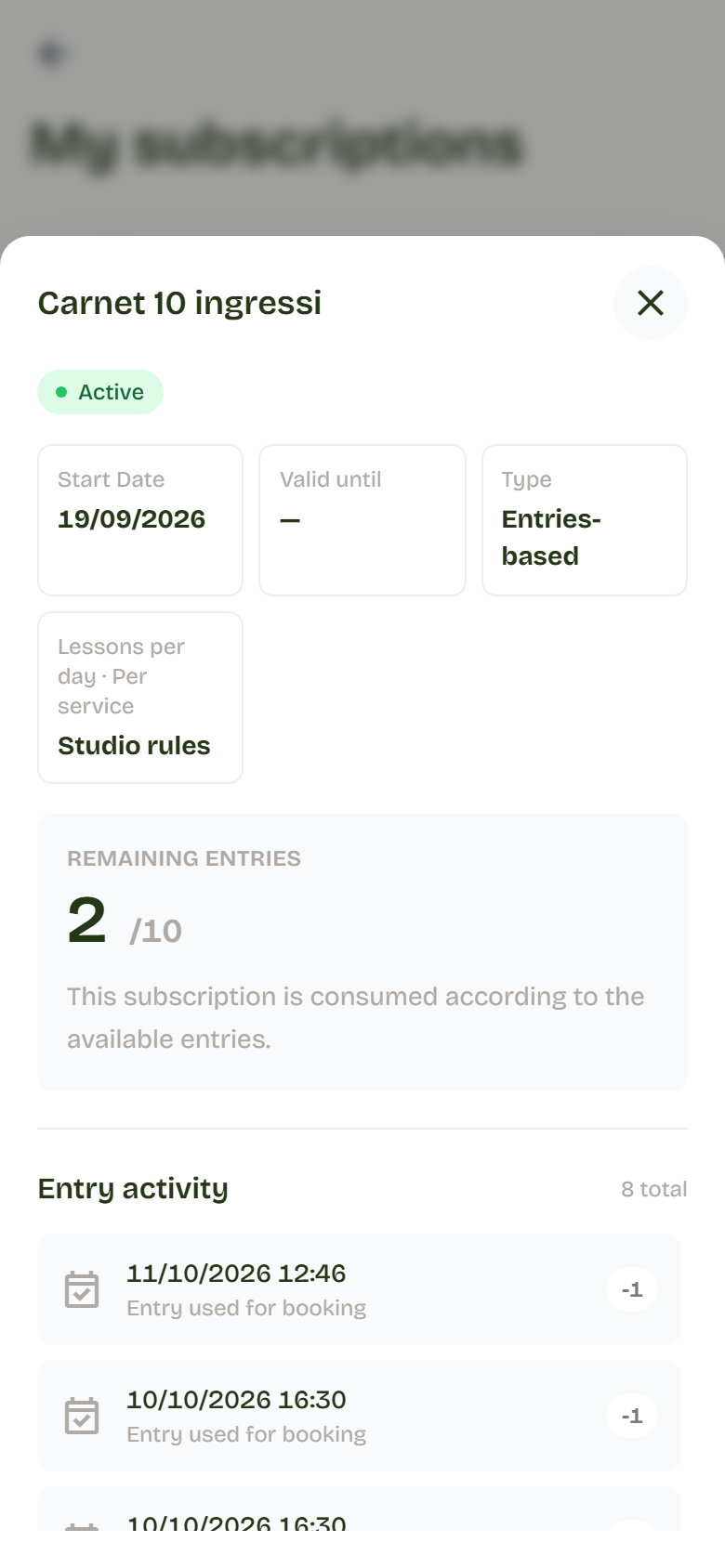
Press More details to see:
- from when until when it's valid (if it's suspended it reads "Paused until reactivation");
- how many lessons you can book, for example "2 bookings per day · 1 per service";
- the entries left;
- Entry activity: the list of every entry used or given back, with the lesson it refers to.
To activate or renew a subscription, ask the studio. If the studio sells online, you can also buy it here.
Buy a subscription online
If the studio sells online, on the same page you'll find Available studio plans. Each plan shows the price, the length and the entries included.
- On the plan you want, press Buy plan.
- Choose the day it should start.
- Fill in the invoice details: tax code, full name, address, postal code and city. You can leave the other fields empty.
- Press Go to payment. The secure card payment page opens.
- Pay. Then you come back to Flo, which tells you how it went.
The subscription starts once the payment is confirmed.
Under Your online orders you'll find every purchase and whether it has been paid. If a payment was interrupted, press Continue payment to finish it.
Billing details
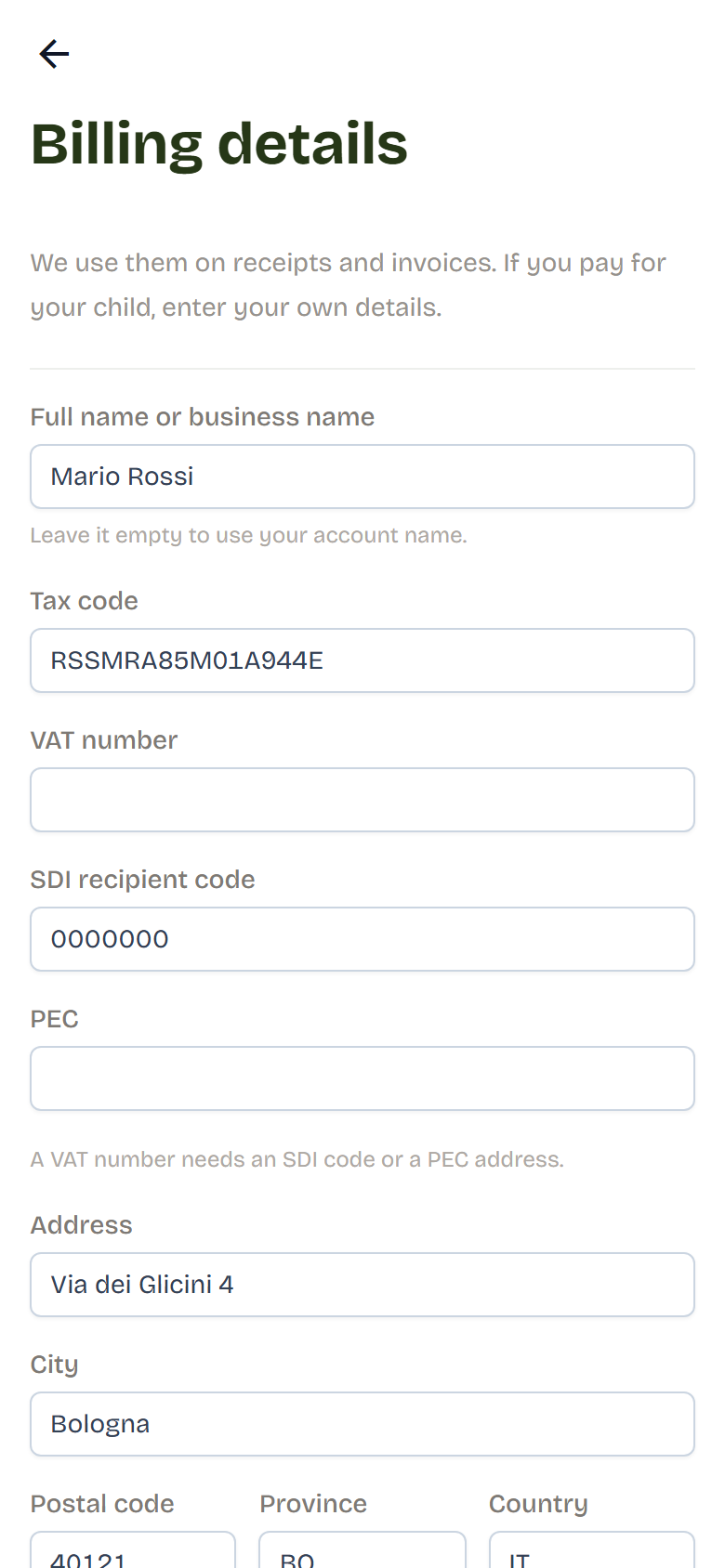
Here you enter who receipts and invoices are made out to. If you pay for your child, enter your own details.
- Open Profile > Billing details.
- Type your full name. If you leave it empty, Flo uses your account name.
- Type your Tax code.
- Type your address, postal code, city, province and country.
- Press Save. "Details saved." appears.
Do you have a VAT number? Type the VAT number instead of the tax code, and add the SDI recipient code or the PEC address: your accountant can give you these.
My invoices
In Profile > My invoices you'll find the invoices in your name. For each one you can download:
- the PDF, to read or print;
- the XML file, which your accountant needs.
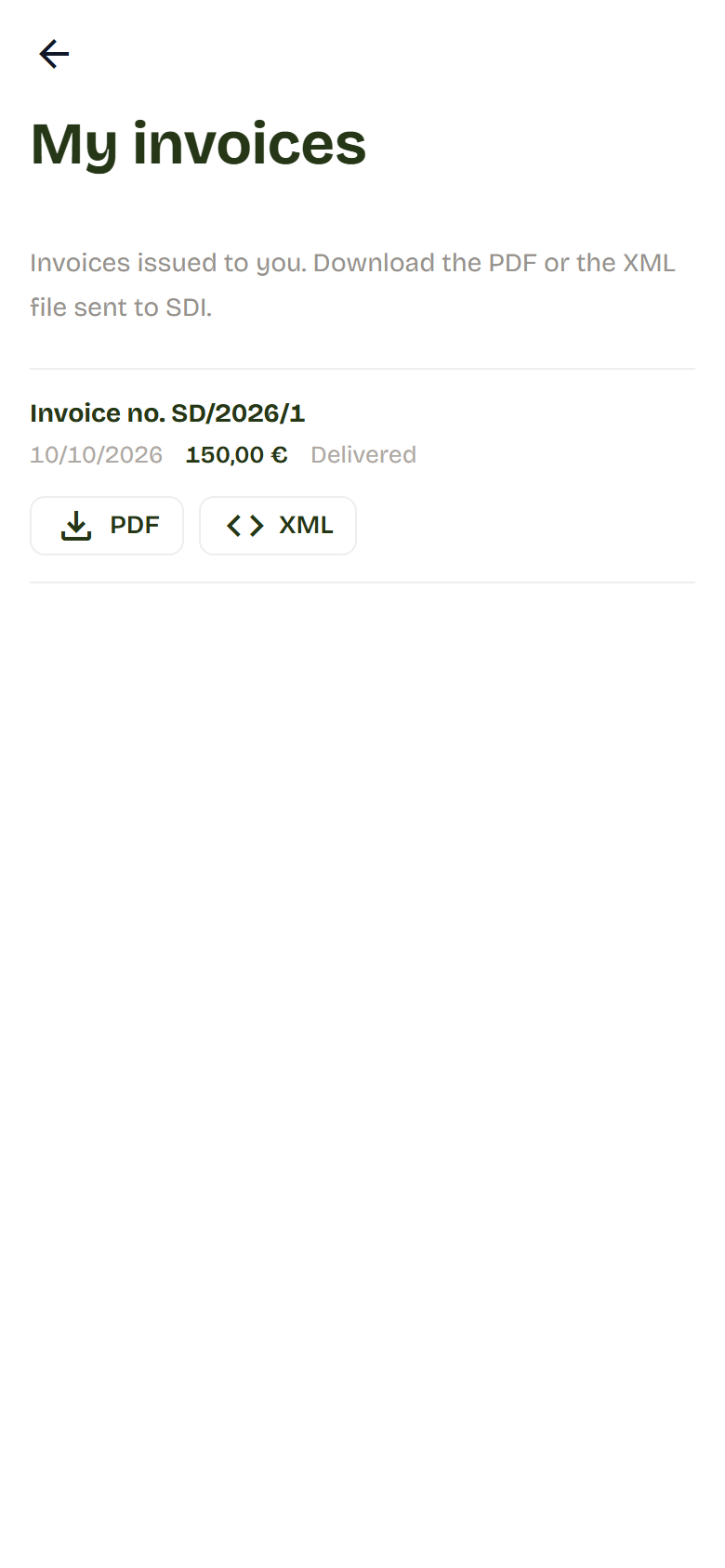
If the page is empty, the studio hasn't issued any invoices in your name yet.
Security and privacy
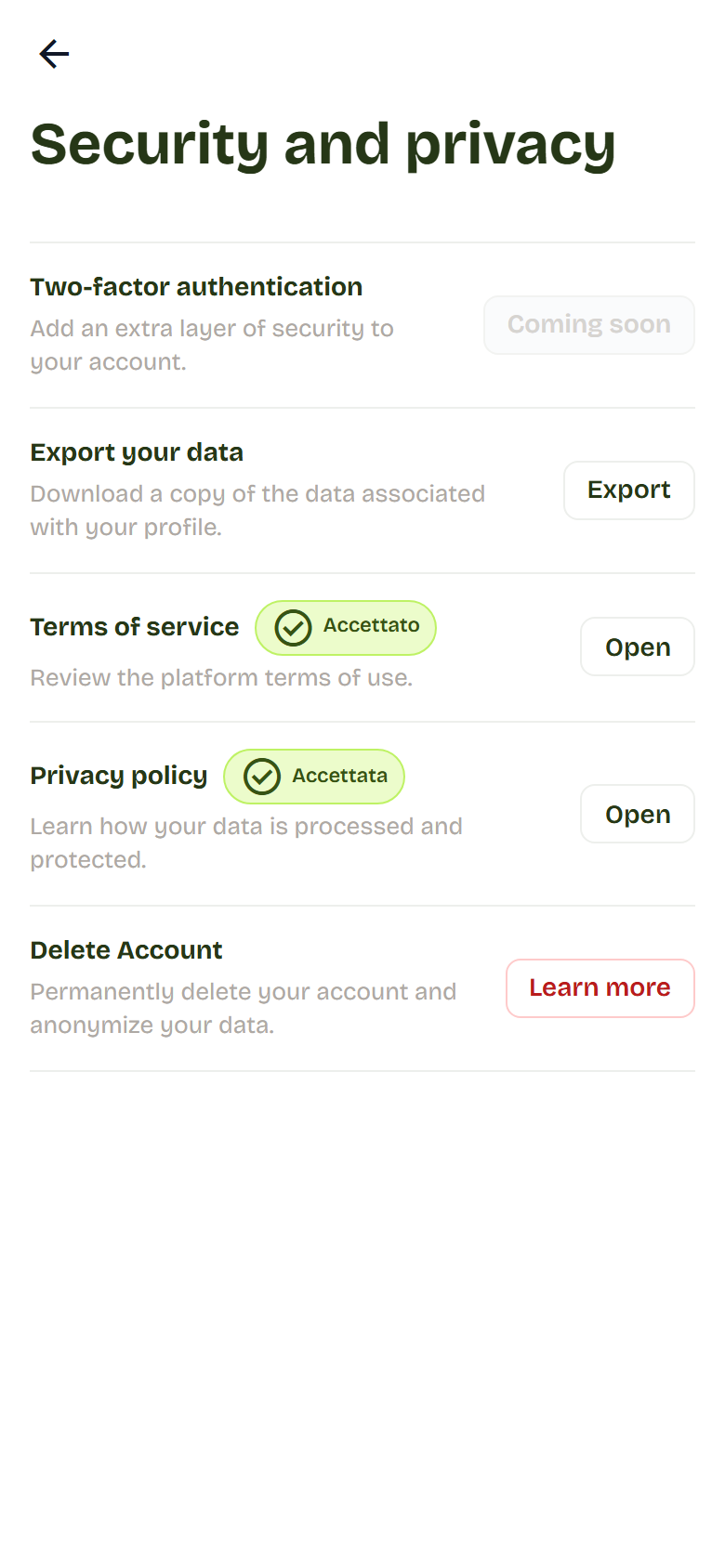
On this page you can:
- download your data: press Export and you get a file with all your profile data;
- read the Terms of service and the Privacy policy: press Open;
- delete your account (see below).
The Two-factor authentication row is marked "Coming soon".
Change your password
For now there's no button to change your password from the account. Do this:
- Log out of Flo.
- On the sign-in page, press Forgot password?.
- Follow these steps.
Delete your account
Deleting your account erases your data. After 30 days it's gone for good.
- Open Profile > Security and privacy.
- In the account deletion row, press Learn more.
- Read what happens and confirm.
- Type your password and confirm.
Flo signs you out straight away.
System App
This page helps when the app isn't working as it should.
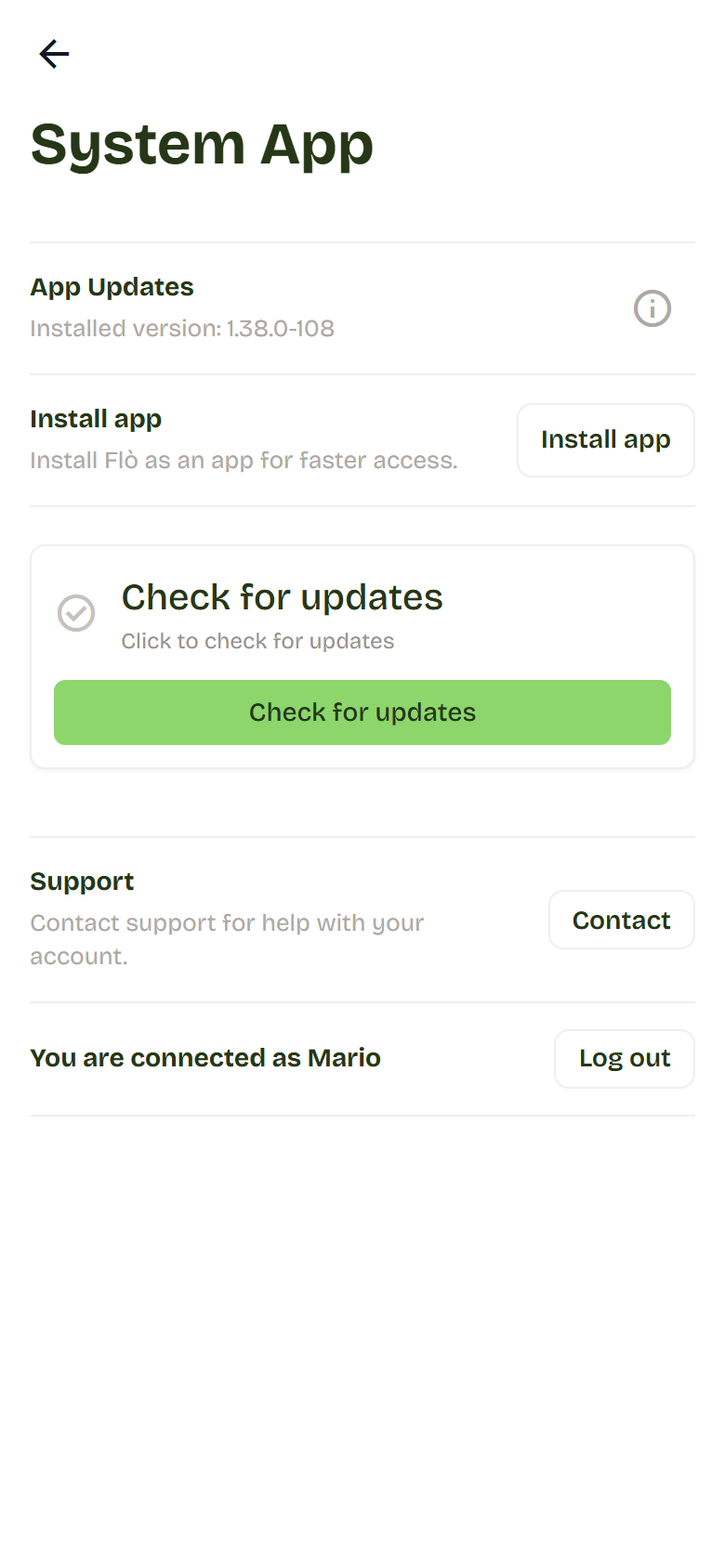
- App updates: press Check for updates. If there's a new version, a notice asks you to reload.
- Install app: puts Flo on your phone. See Put Flo on your phone.
- Support: press Contact to write an email.
- Log out: signs you out of Flo, on all your devices.
The emails you receive
Flo writes to your account email to:
- activate your account and reset your password;
- confirm your bookings;
- send you a sign-in code, if the studio uses one;
- tell you about subscriptions, purchases and invoices;
- send the newsletter, if you subscribed.