Book a lesson
Here you'll find how to book a lesson, what the colours of the times mean and how to cancel.
If you can't see Book, your studio doesn't use Flo for bookings: ask them how to book.
Find the lesson
- Open Book: on a phone it's in the bar at the bottom.
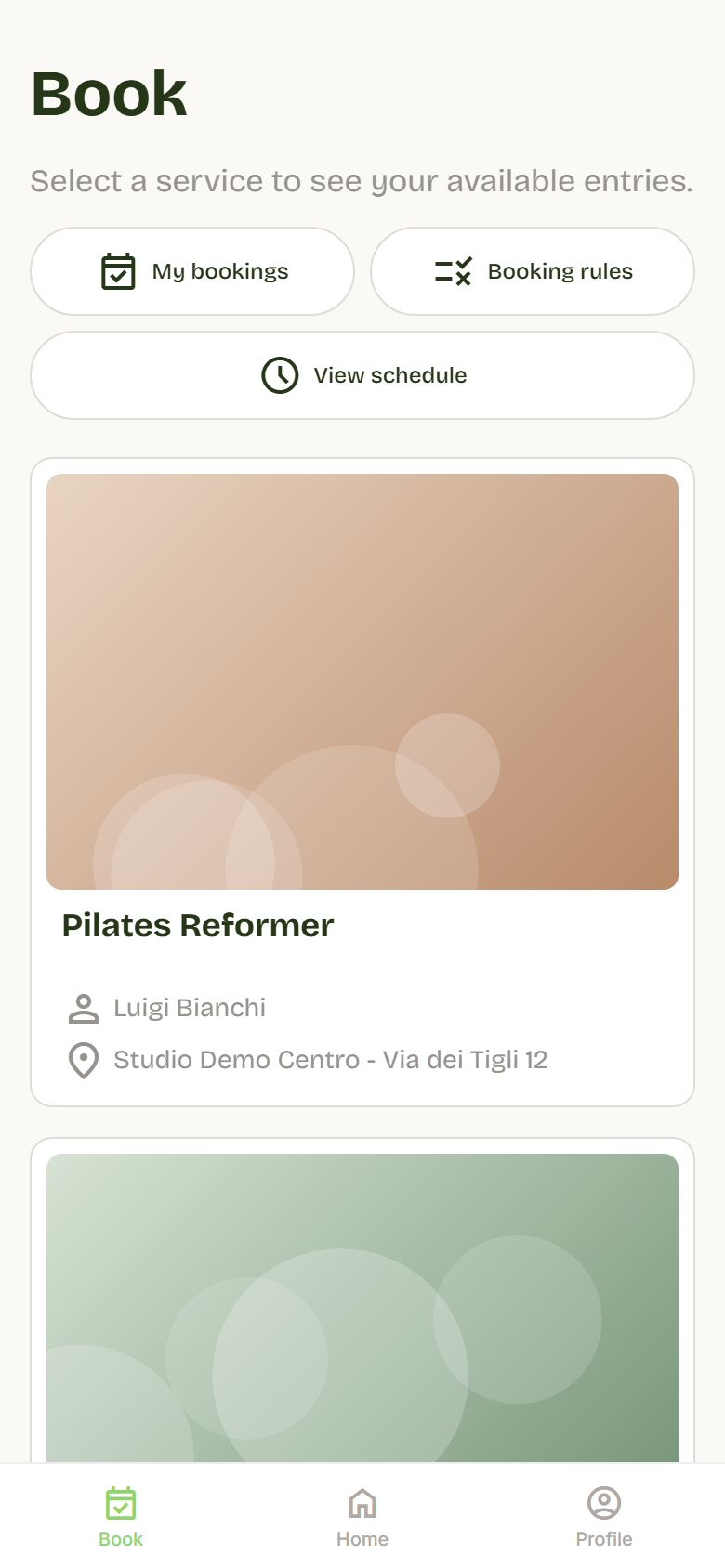
- You'll see a card for each service, for example Pilates or Yoga. Each card has a photo, the instructor and the location.
- Tap the service you want.
At the top you also see how many entries you have left for that service, for example "You have 8 entries available". Entries are the lessons included in your subscription or pass.
Book
- Choose the day in the calendar. Days with lessons are highlighted.
- Look at the times. First you see the ones you can book, then the others.
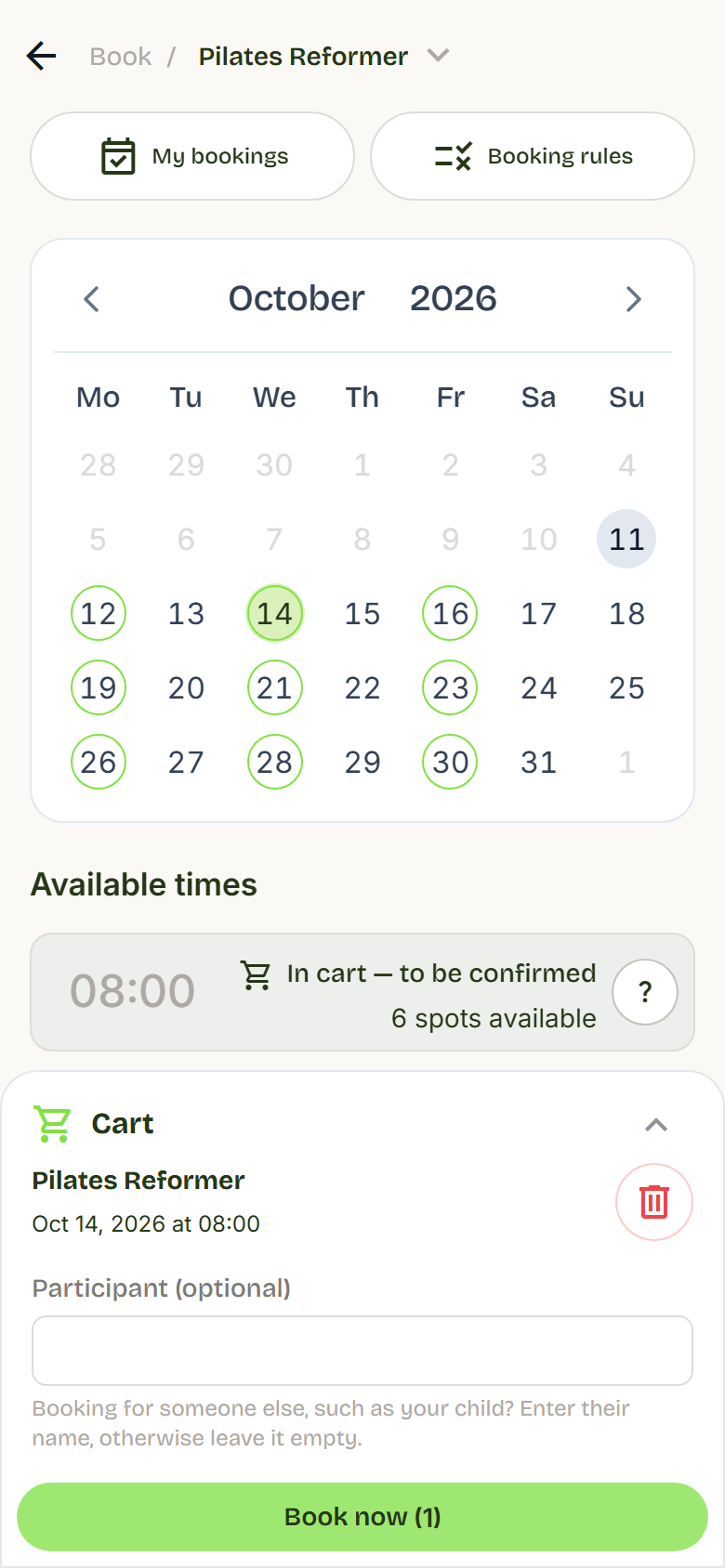
- Tap the time you want: it goes into the cart.
- Open the cart. On a phone it's the bar at the bottom: tap it to open it.
- Press Book now.
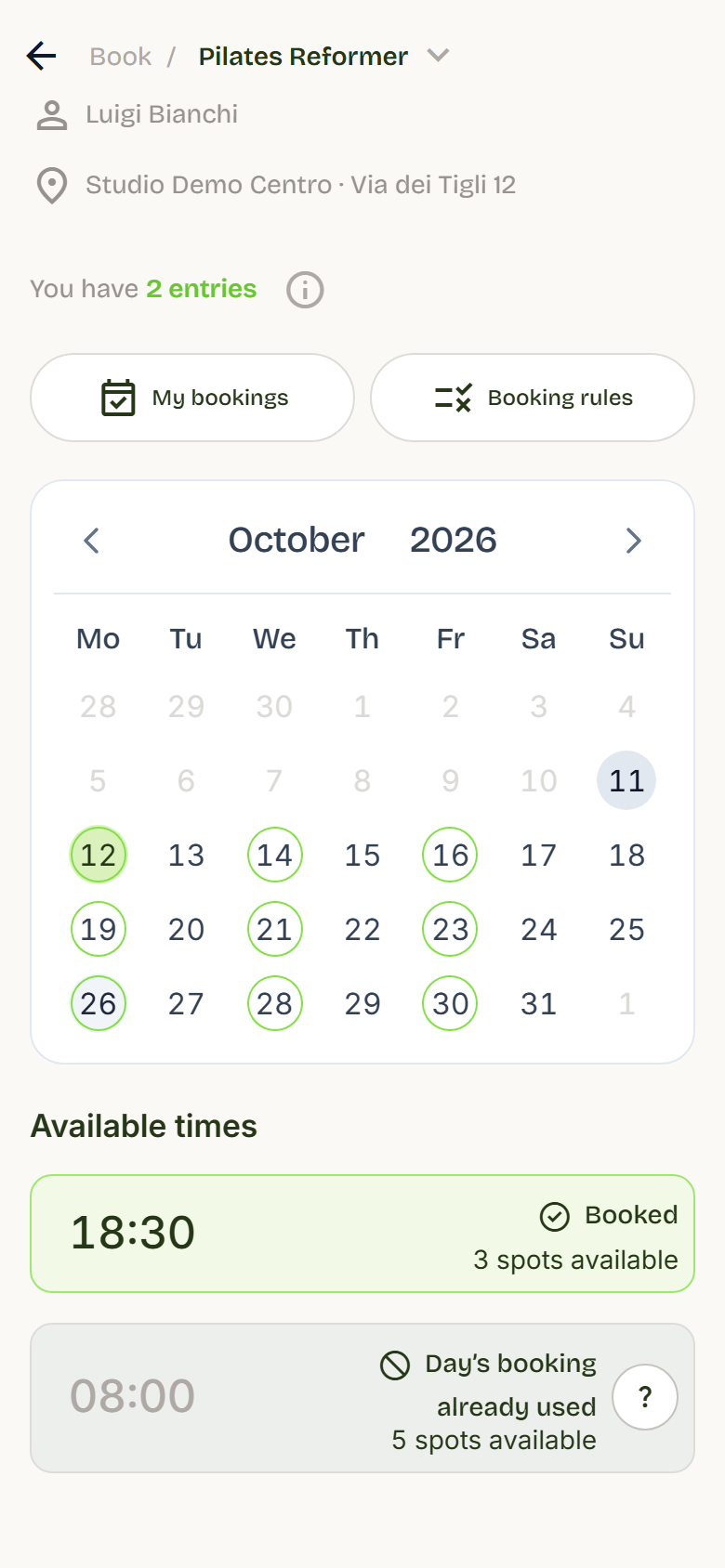
Done: the row turns green and reads Booked. You'll find the lesson in Profile > My bookings.
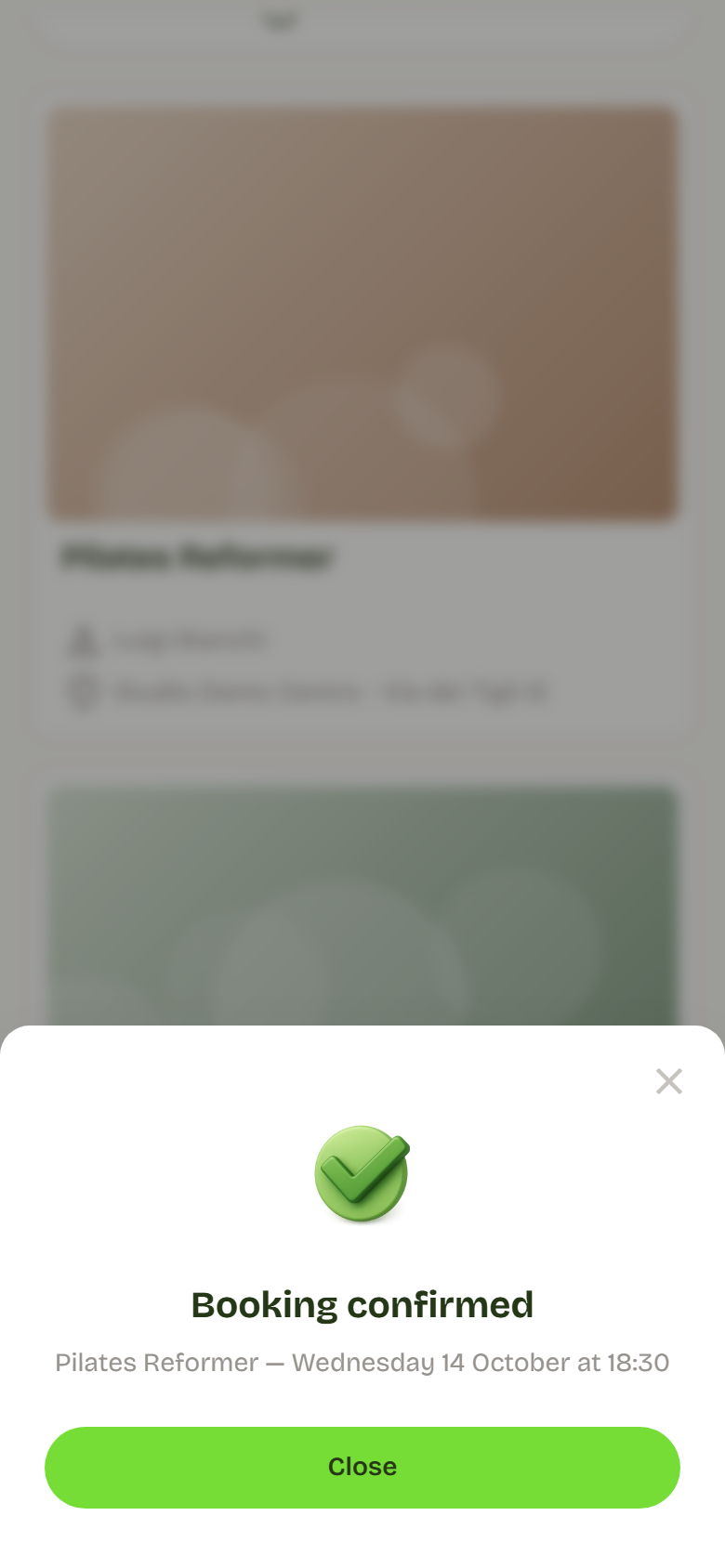
Until you press Book now, the time isn't booked and someone else can take the spot.
You can put several lessons in the cart and book them all together. To remove a lesson from the cart, press the bin next to it.
What each time means
Each row shows the time on the left and its state on the right. The colour tells you at a glance:
- white row: you can book it, tap it to add it to the cart;
- green row: it's already yours;
- grey row: you can't book it right now, and the text on the right says why.
When the row has a round question-mark button, tap it (Why?): it opens an explanation with the service, the time and your subscription dates.
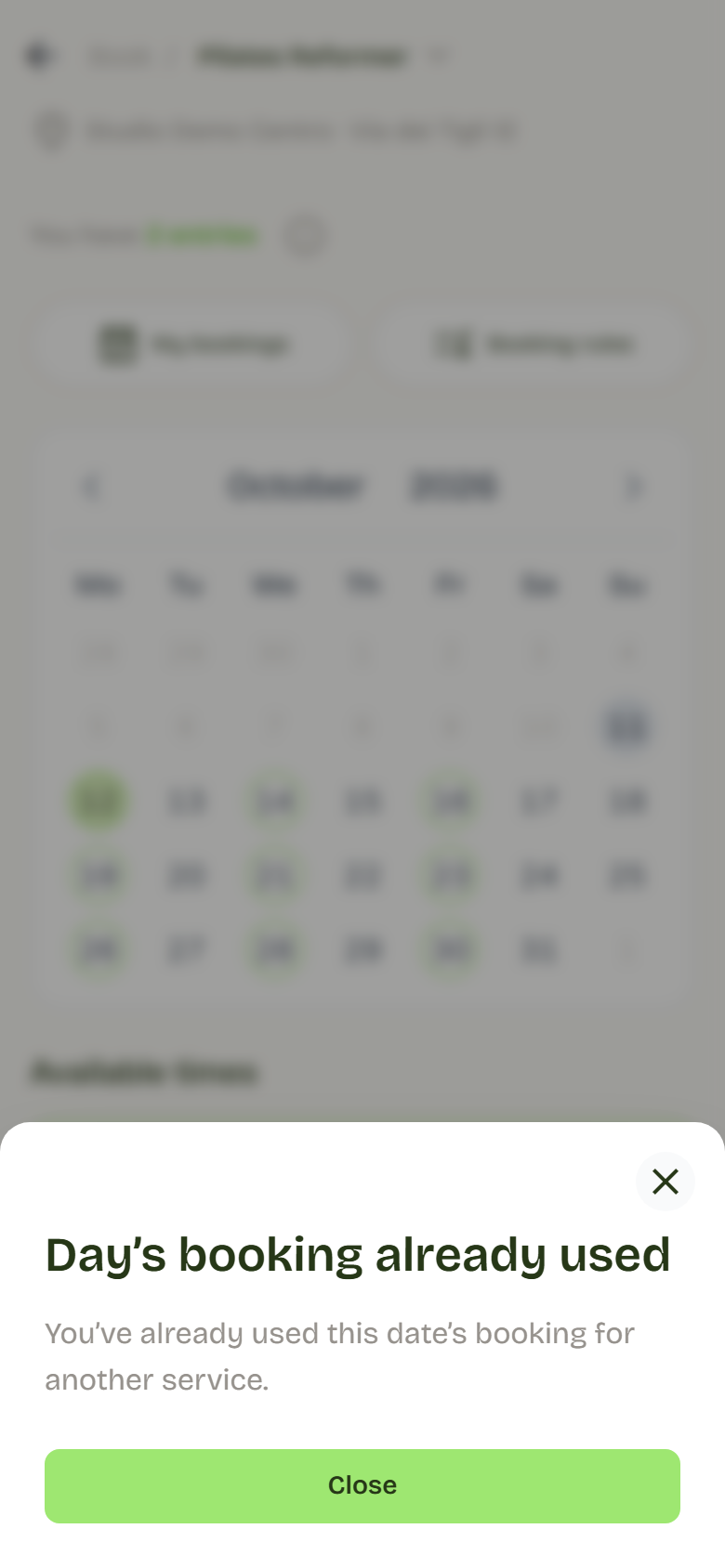
Below is every row you can meet, with what it means.
Bookable times
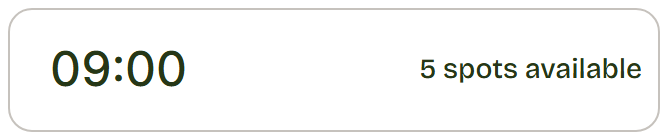
What it means: the time is free and 5 spots are left.
What you can do: tap the row to add it to the cart.
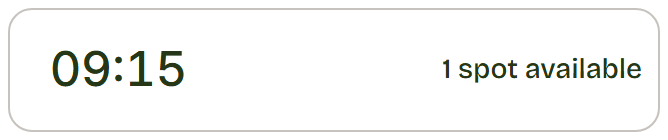
What it means: only one spot is left.
What you can do: add it to the cart and confirm right away: the spot is yours only after Book now.
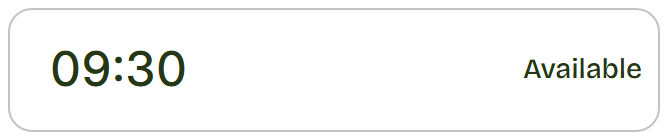
What it means: the time is bookable and the studio hasn't set a number of spots.
What you can do: tap the row to add it to the cart.
Times that are already yours
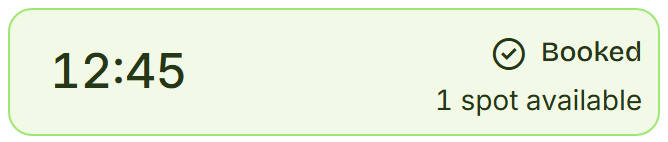
What it means: you've already booked this time. Below you see how many spots are left for others.
What you can do: nothing, you're in. To cancel, go to Account > My bookings.
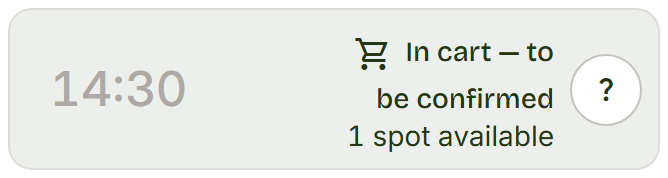
What it means: you've put the time in the cart, but the booking isn't confirmed yet.
What you can do: open the cart and press Book now, or remove the time from the cart.
Full, cancelled or closed lessons
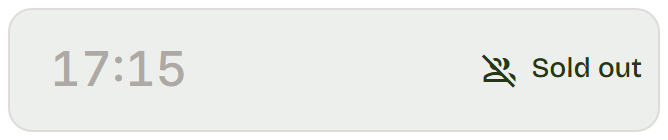
What it means: every spot is taken.
What you can do: choose another time or another day.
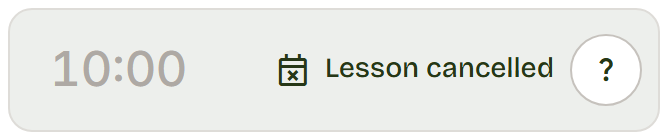
What it means: the studio cancelled the lesson, for example for a closure. Why? shows the reason, if the studio gave one.
What you can do: choose another time. If you had booked it, Flo gives your entry back.
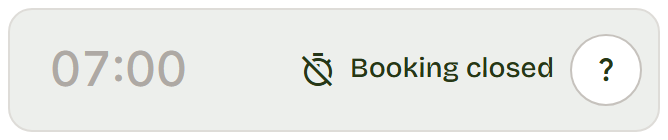
What it means: the time has passed, or it's closer than the notice the studio asks for bookings.
What you can do: choose a later time, or contact the studio if you still want to join.
Booking limits
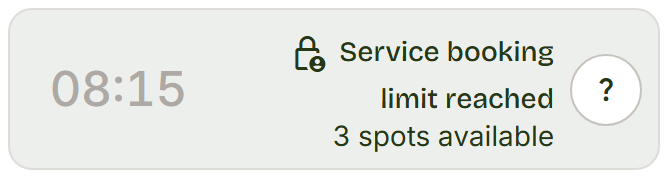
What it means: on this date you already have the maximum number of bookings for this service.
What you can do: choose another day.
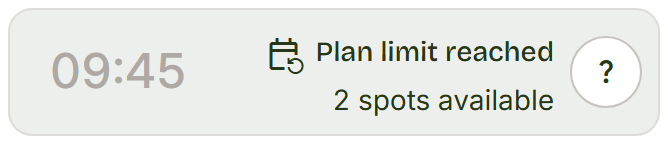
What it means: your subscription allows a maximum number of lessons per day, and you've reached it on this date.
What you can do: choose another day.
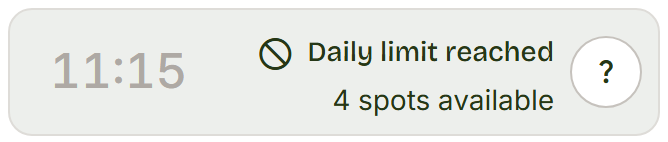
What it means: on this date you already have the maximum number of bookings the studio allows in a day.
What you can do: choose another day.
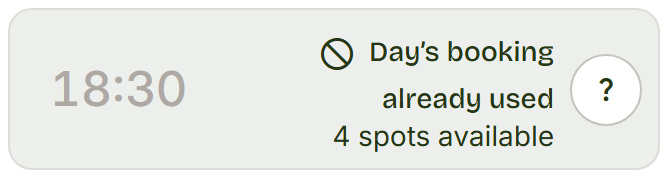
What it means: the studio allows one booking per day, and you've already used it on this date with another service.
What you can do: choose another day, or cancel the other booking if you prefer this one.
Other lessons at the same time
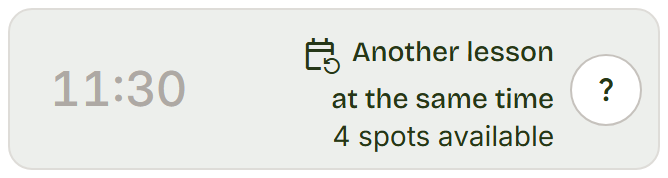
What it means: you've already booked another lesson at this time.
What you can do: choose another time.
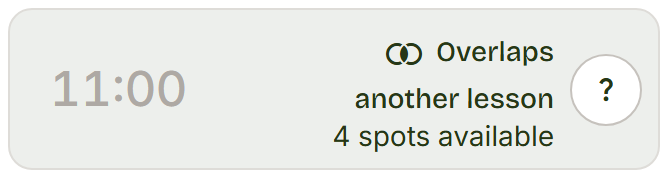
What it means: the time overlaps a lesson you've already booked, even if it starts at a different hour.
What you can do: choose a time that doesn't overlap.
Subscription and entries
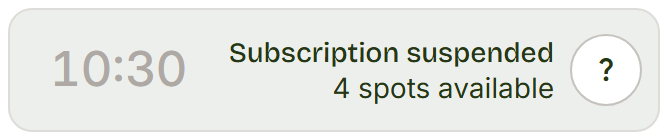
What it means: your subscription is paused and can't be used to book.
What you can do: ask the studio to reactivate it.
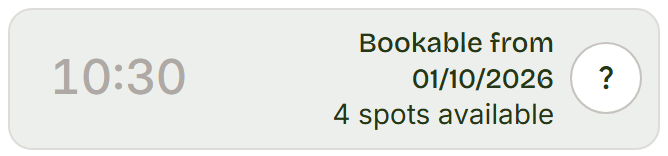
What it means: your subscription starts later. The row says from which day you can book.
What you can do: choose a day from that date on.
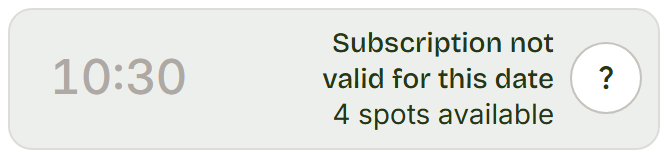
What it means: your subscription doesn't cover this date, for example because it ends earlier. Why? shows until when it's valid.
What you can do: choose a covered date, or renew your subscription.
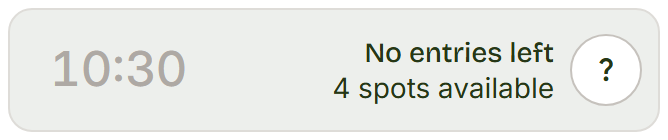
What it means: you've used all your entries for this service.
What you can do: renew your subscription or ask the studio.
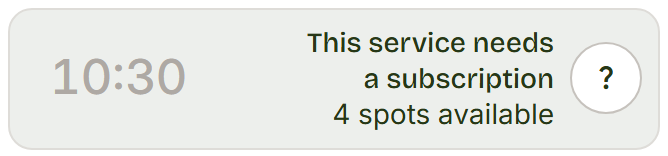
What it means: none of your subscriptions includes this service.
What you can do: ask the studio for a subscription that covers it.
Cart
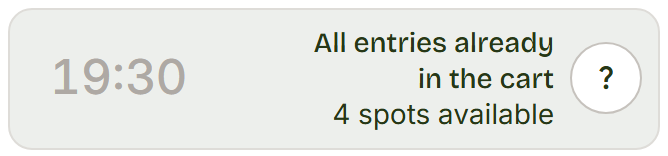
What it means: the times in your cart already use all the entries you have left.
What you can do: confirm the cart, or remove a time to choose another one.
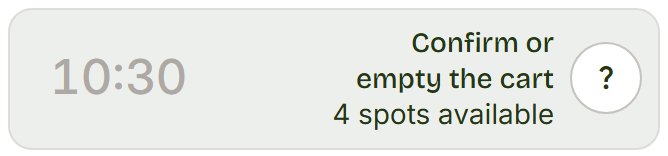
What it means: with online payment the cart holds one lesson at a time, and you already have one.
What you can do: confirm and pay for the one in the cart, or empty the cart.
Passing states
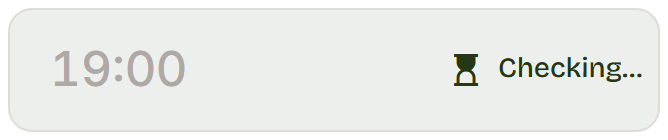
What it means: Flo is checking your subscription and limits for this time.
What you can do: wait a moment: the row updates by itself.
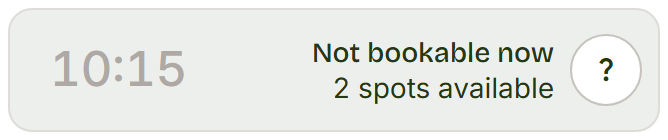
What it means: the time can't be booked right now, and Flo has no more precise reason to show.
What you can do: reload the page; if it stays the same, ask the studio.
The rules in short
Each studio sets its own rules. The most common ones are these:
- One lesson a day. Usually you can book one lesson a day. The studio, or your subscription, may allow more.
- Book ahead. Booking closes shortly before the lesson, usually 2 hours before.
- Cancel in time. If you cancel when fewer than those hours are left, you don't get the entry back.
- One lesson at a time. You can't book two lessons that overlap, not even by a few minutes.
- No full, past or cancelled lessons. Those times stay grey.
Your studio's rules are on the Book page: press Booking rules.
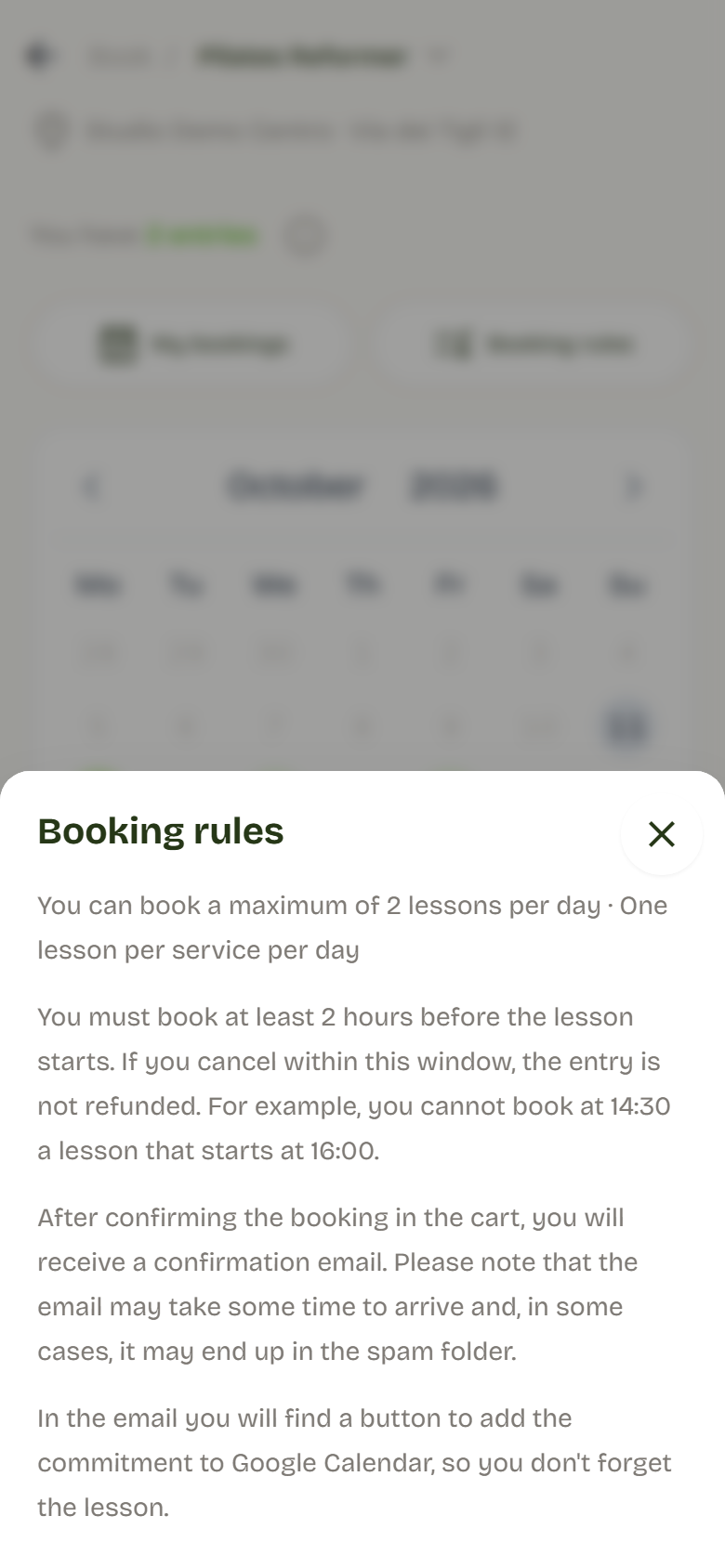
When a rule stops you, the time row says so. You'll find every case, with its image, in What each time means.
Pay online
Some studios have you pay for the lesson online, by card. In that case, at the top you see the Online price.
Sometimes you can choose:
- Pay online now: you pay straight away by card;
- Pay at the studio: the booking is made straight away and you pay the studio on the day of the lesson.
To pay online:
- Put only one lesson in the cart: online you pay for one at a time.
- Press Continue to payment.
- Type the invoice details: your tax code, name, address, postcode and town. You can leave the other fields empty.
- Press Continue to payment again. The secure card payment page opens. Flo never sees or keeps your card details.
- Pay. You then come back to Flo by yourself, and it tells you how it went.
What you may read at the end:
- Payment received. Booking confirmed. All done: the receipt arrives by email.
- Payment received. Booking confirmation is in progress. Wait a few seconds: Flo is finishing.
- Payment has not completed yet. The payment hasn't arrived yet. Check later in My bookings.
- Payment failed. or The payment session expired. You haven't paid and you haven't booked: you can try again.
- Payment received. Staff must complete the review. You've paid: the studio checks and confirms.
Cancel a booking
- Open Profile.
- Open My bookings.
- In the Upcoming tab, find the lesson.
- Press Cancel.
- Confirm.
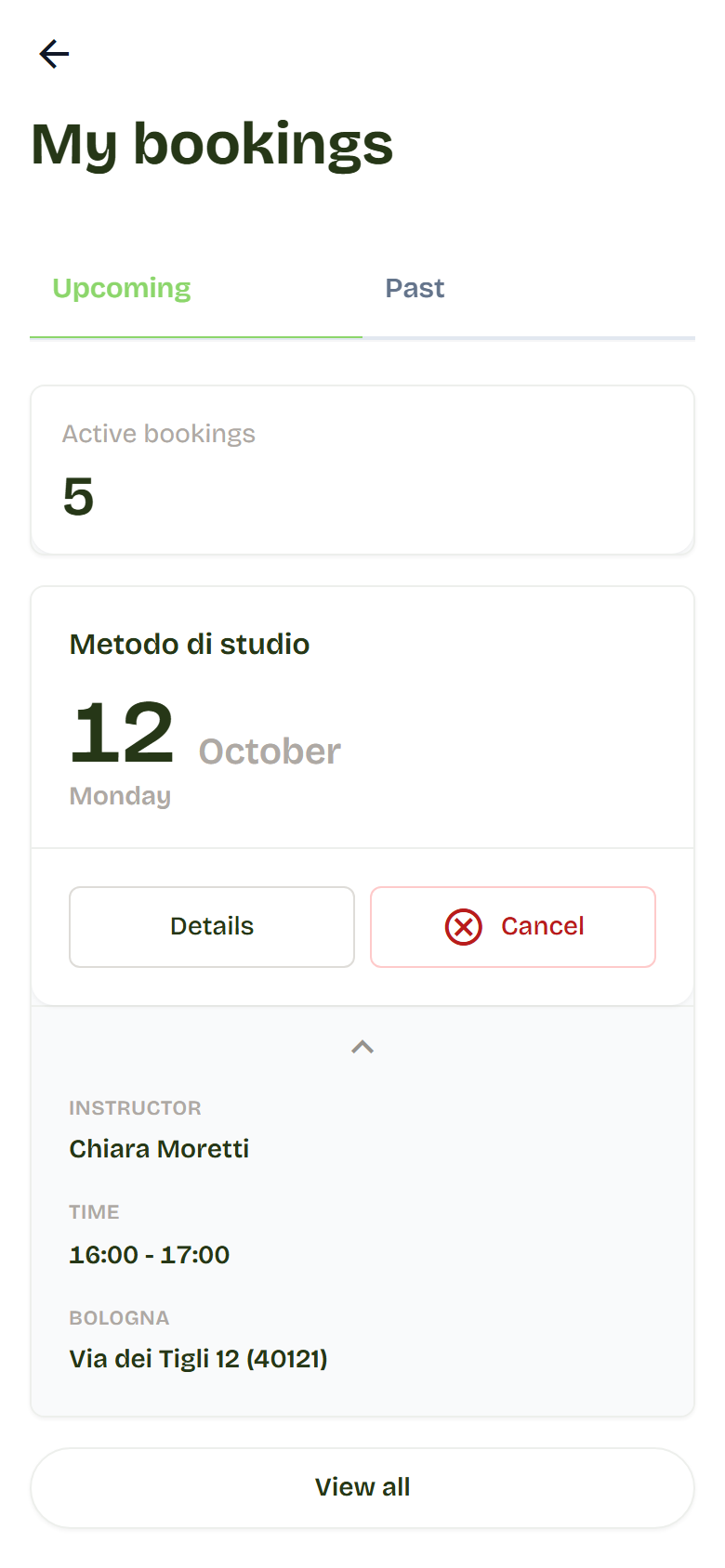
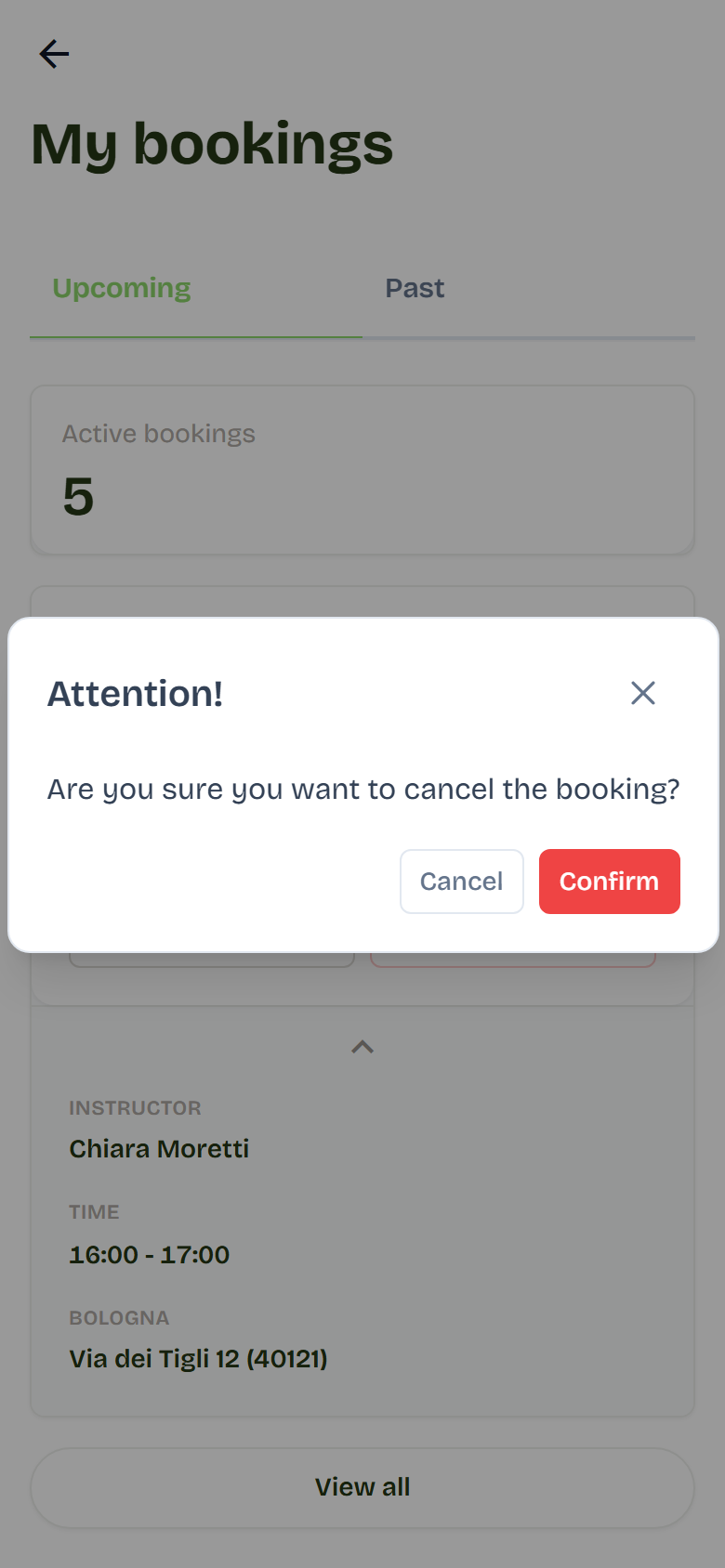
The spot becomes free for others.
If you cancel shortly before the lesson (within the studio's notice period), the cancellation counts but you don't get the entry back. The studio may also mark it as a Late cancellation: the spot is freed, but the lesson is still to be paid.
Some studios send you an email before each lesson, with the time by which you can cancel without losing the entry.
Can't see Cancel? The lesson has already started, or you paid for it online: in these cases ask the studio.
If the studio cancels a lesson, you see it on the booking card with the reason, and you get the entry back.
See the week's timetable
On the Book page press View schedule. You see a table with the day's lessons: activity, time, instructor and whether there are spots.
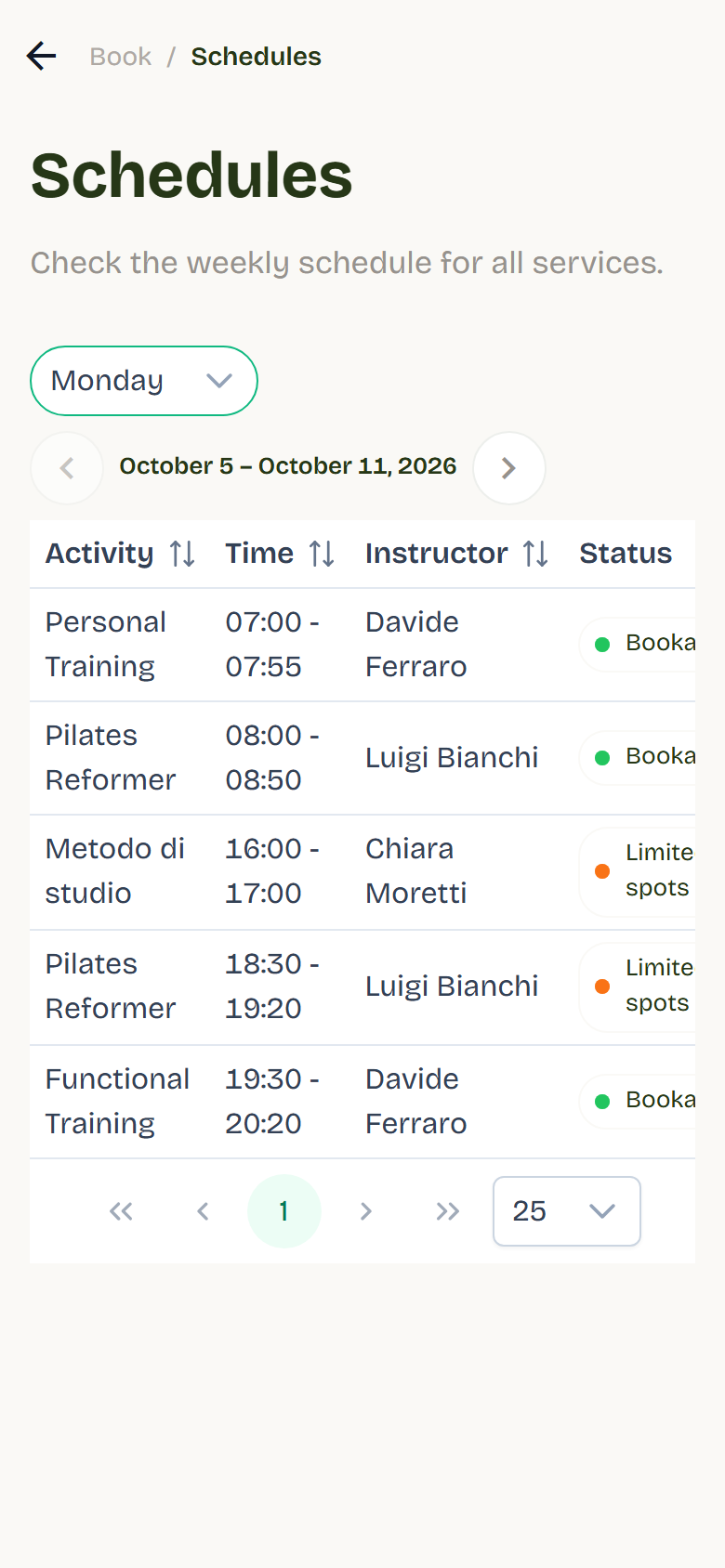
Choose the day from the menu. The arrows take you to the week before or after. You can't book from this table: to book, go back to Book.
Your bookings and subscriptions
Your booked lessons are in Profile > My bookings. Subscriptions, passes and entries left are in Profile > My subscriptions. You'll find everything in Your account.