GA4 Setup for a Customer
When configuring Google Analytics 4 (GA4) for a customer, two things must always be done after the property is created:
- Grant Ledges access —
team.ledges@gmail.commust be added as an Editor on the account. - Link external sources — connect Google Search Console and (when relevant) the Google Business Profile so search and local data flow into GA4.
All steps are performed from Amministrazione (Admin) inside the customer's GA4 account.
The GA4 UI may be shown in Italian or English depending on account settings. Where a label matters, both versions are given. The screenshots below use the customer Urbino Casa as an example.
1. Add Ledges as Editor
Ledges needs edit access to manage the property and create the links described below.
- Go to Amministrazione → Impostazioni account → Account → Gestione dell'accesso all'account (Account access management).
- Click + (top right) and add
team.ledges@gmail.com. - Assign the Editor role.
The access list should end up like this — the customer as Amministratore (Administrator) and team.ledges@gmail.com as Editor:
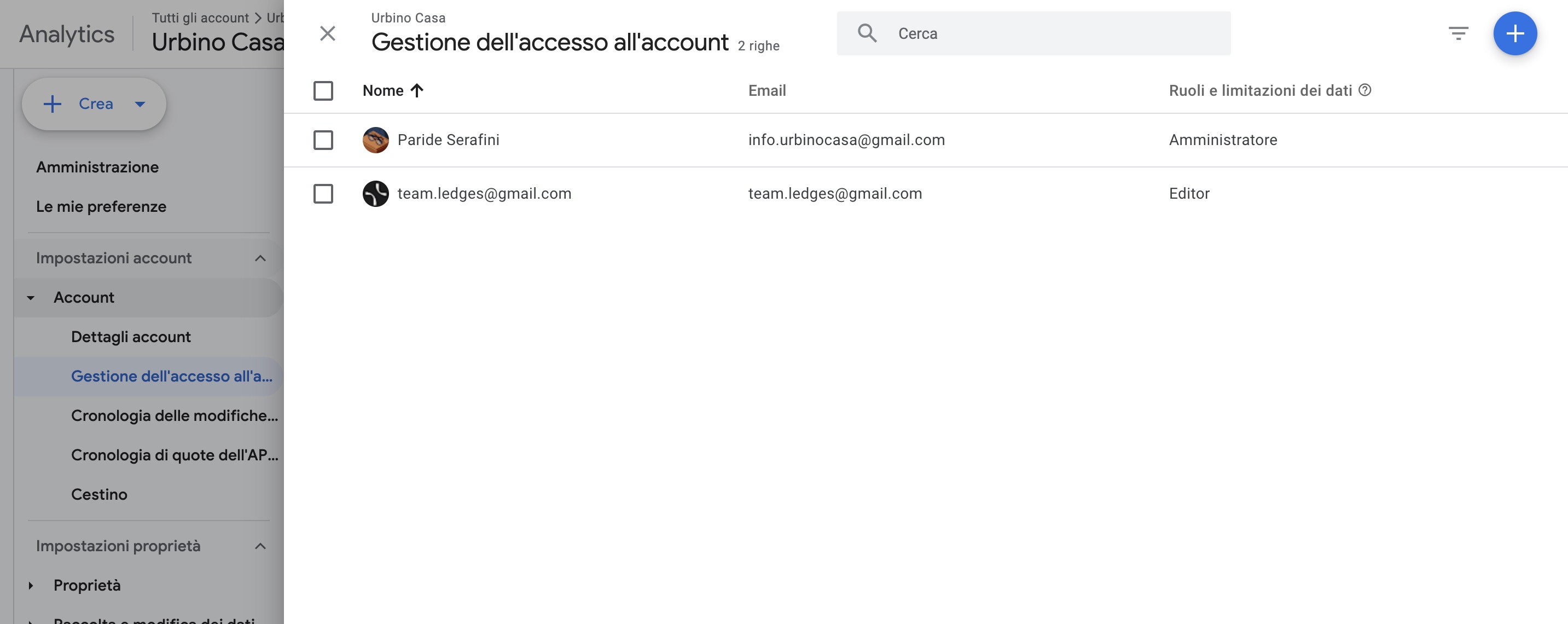
Editor is enough — it allows linking products and editing the property without granting user-management rights. Do not request Amministratore unless the customer explicitly hands over ownership.
2. Link Google Search Console
Linking Search Console brings organic search queries and landing-page data into GA4.
Requirements: you must be a verified owner of the Search Console property and have edit permission on the GA4 property (granted in step 1).
-
Go to Impostazioni proprietà → Collegamenti dei prodotti → Collegamenti Search Console (Property settings → Product links → Search Console links).
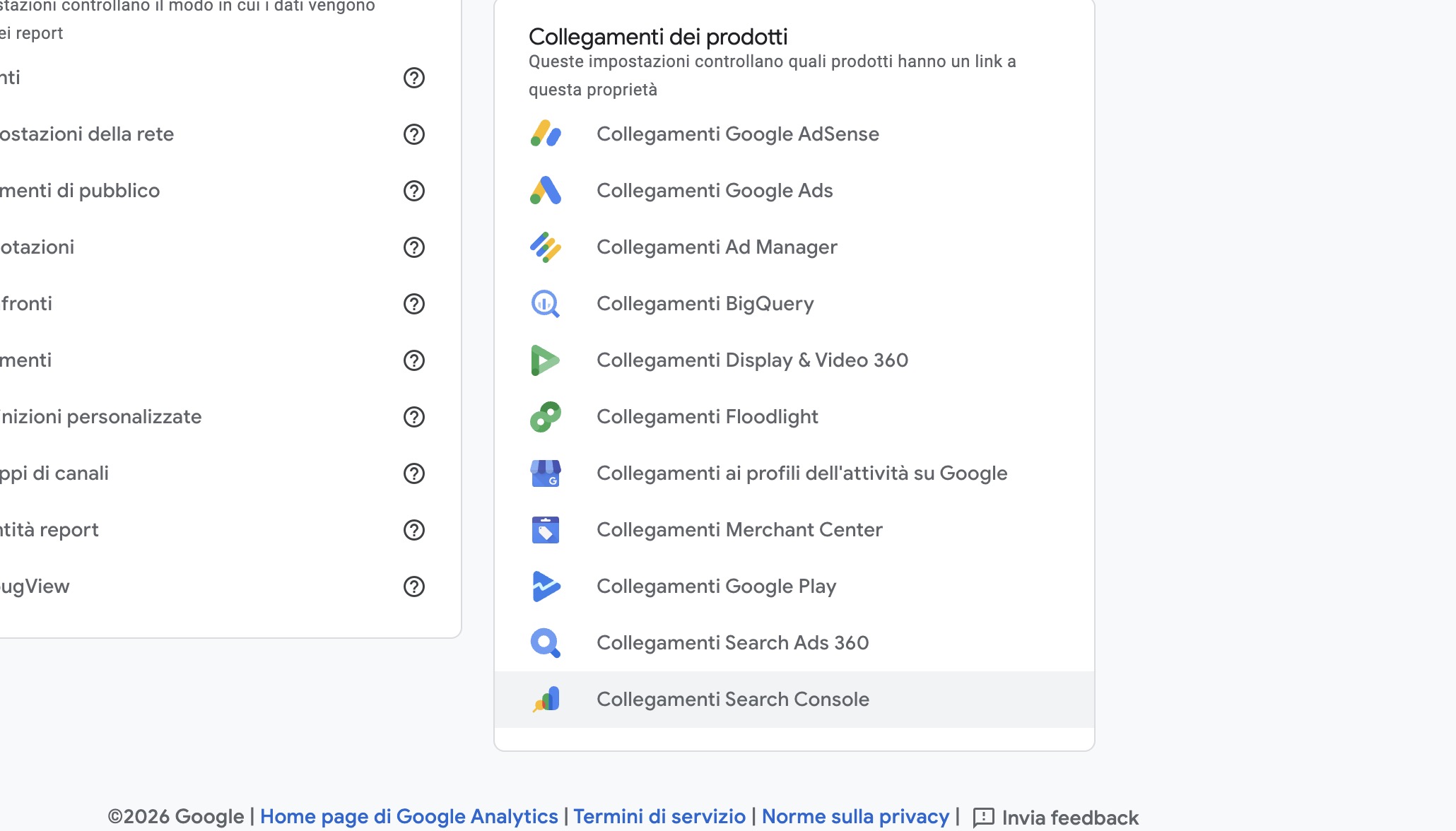
-
On a new property the list is empty. Click Collega (Link).
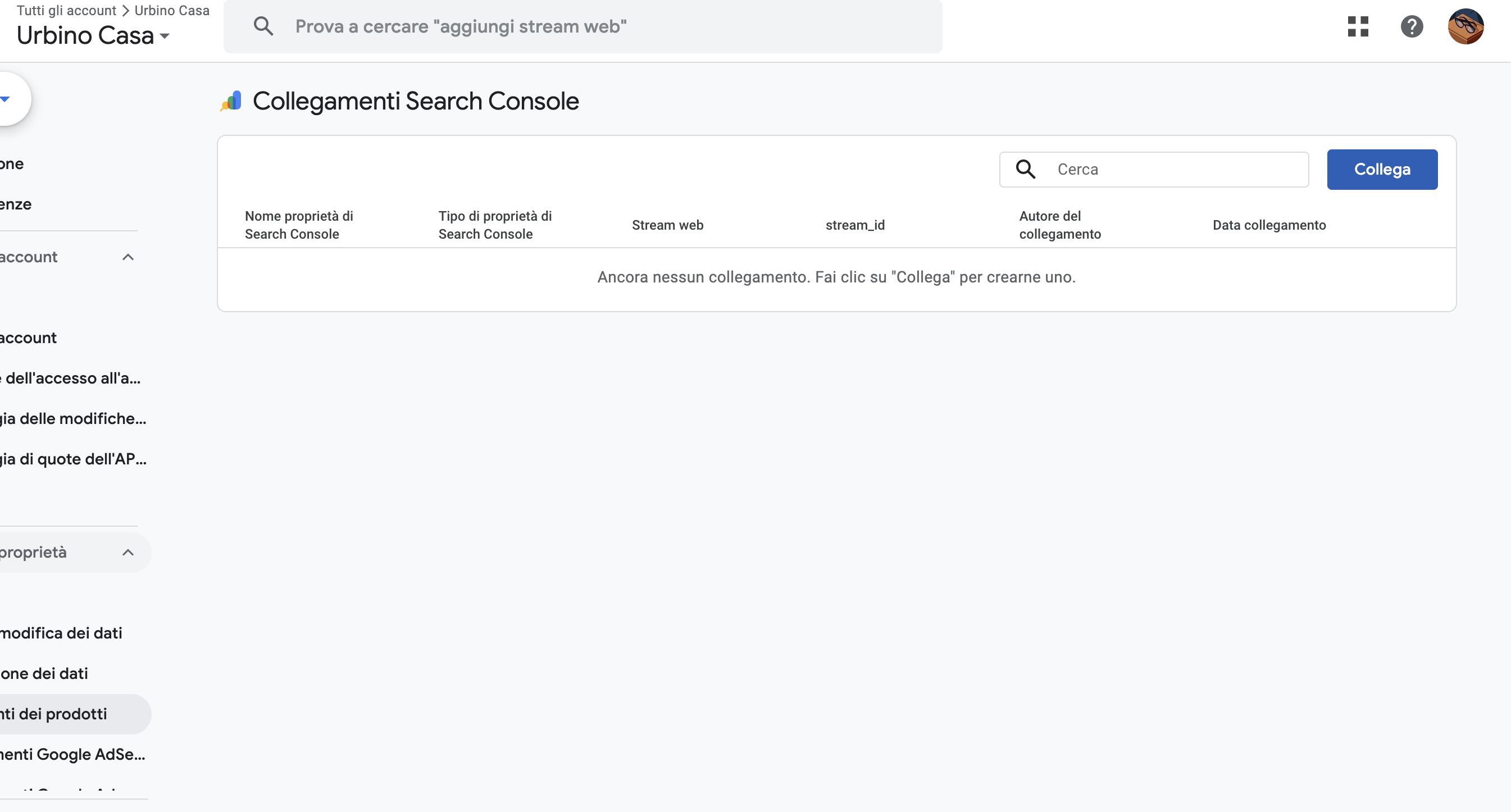
-
In Configurazione collegamento, at step Scegli una proprietà Search Console, click Scegli account (Choose account).
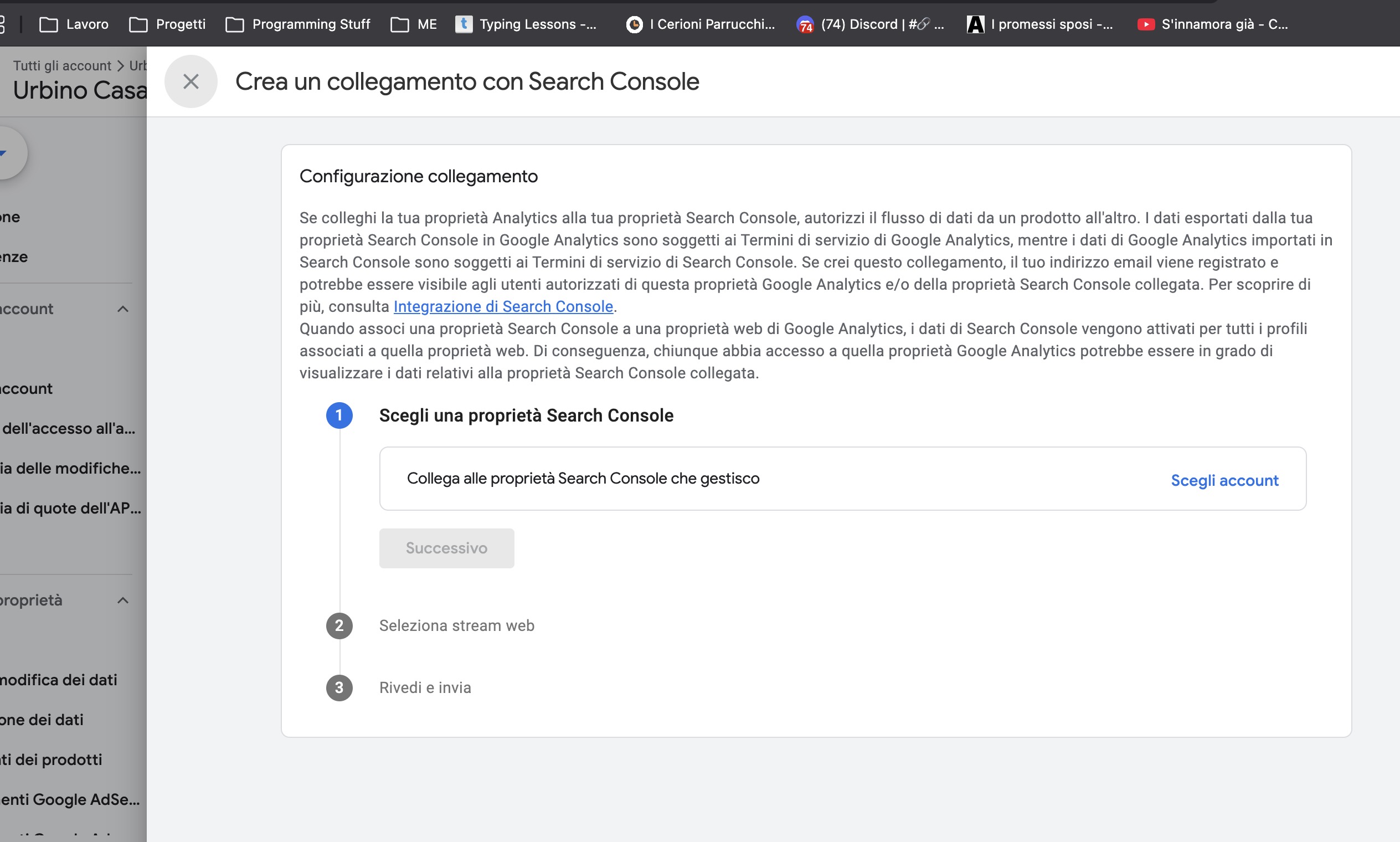
-
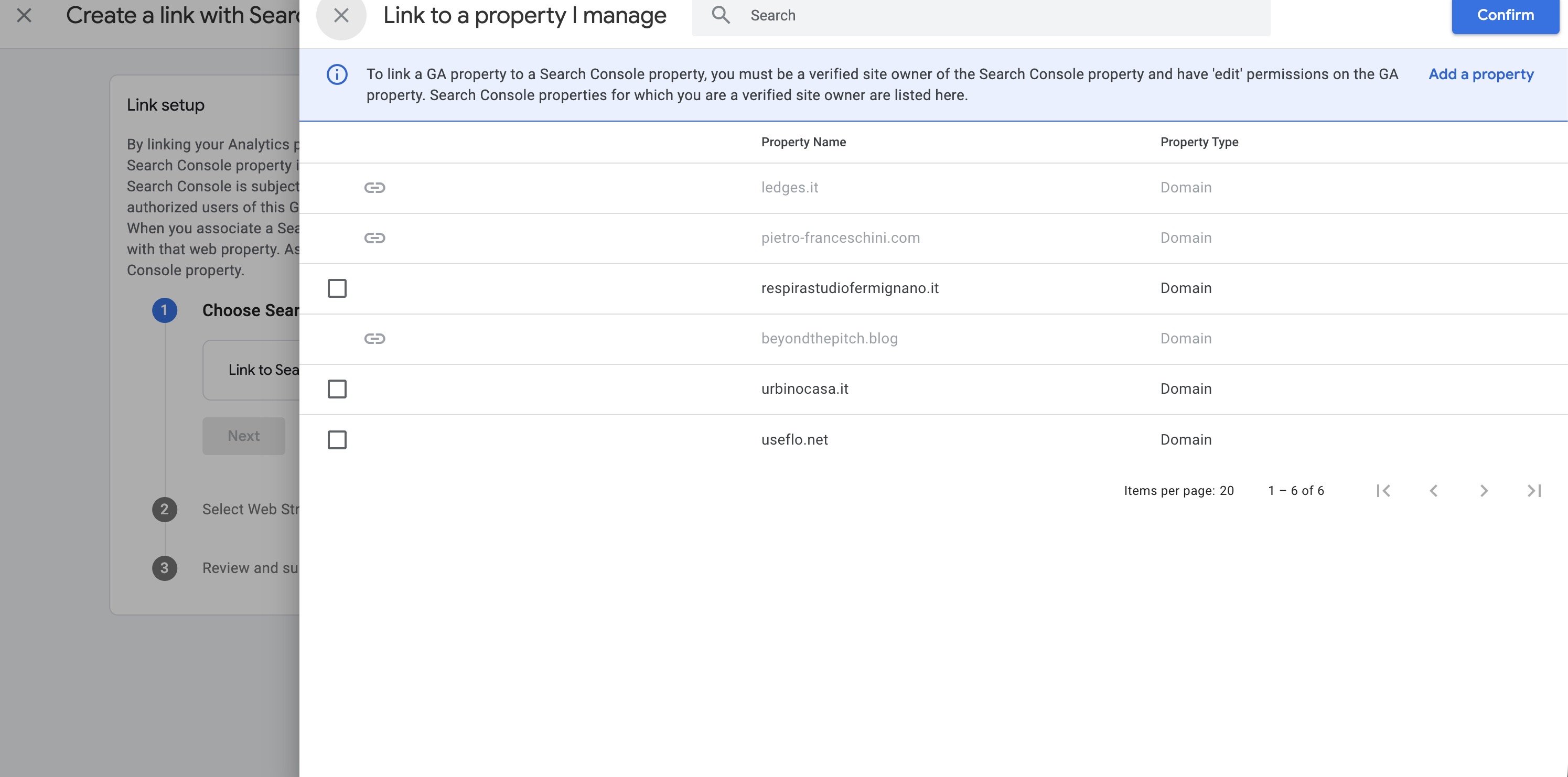
Pick the customer's domain from the list of Search Console properties you own, then Conferma (Confirm).
-
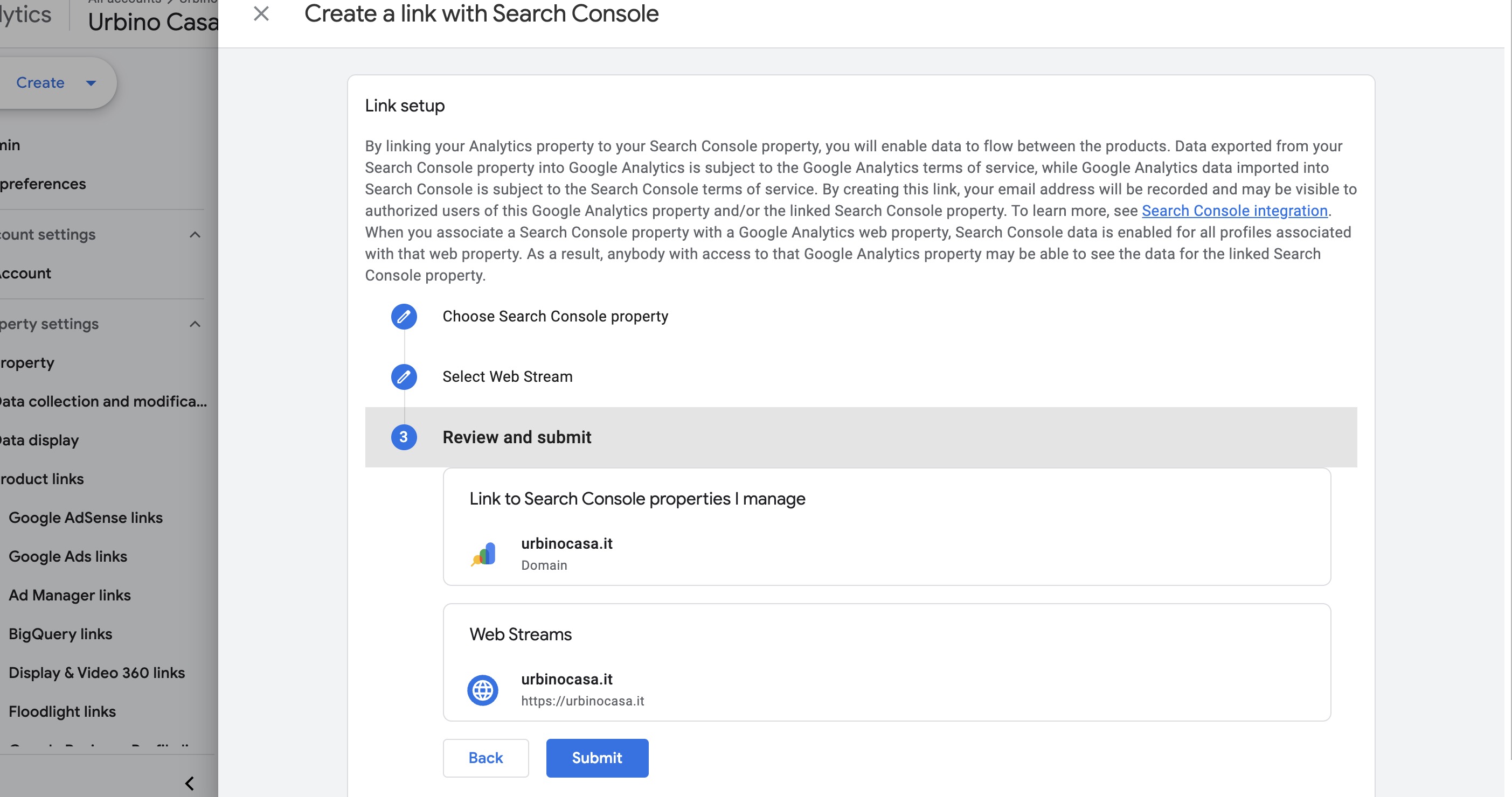
Select the web stream, review the summary, then Invia (Submit).
-
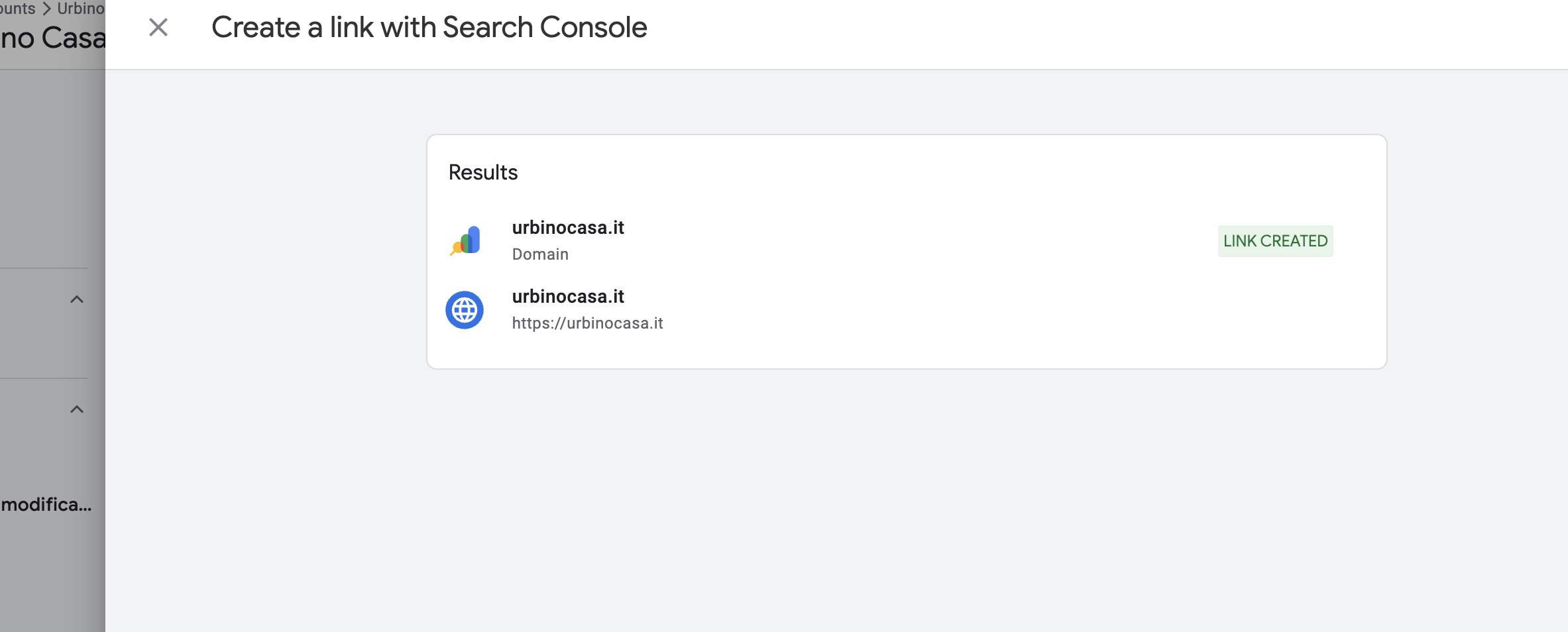
A LINK CREATED confirmation appears.
-
The link now shows in Collegamenti Search Console, with
team.ledges@gmail.comlisted under Linked by.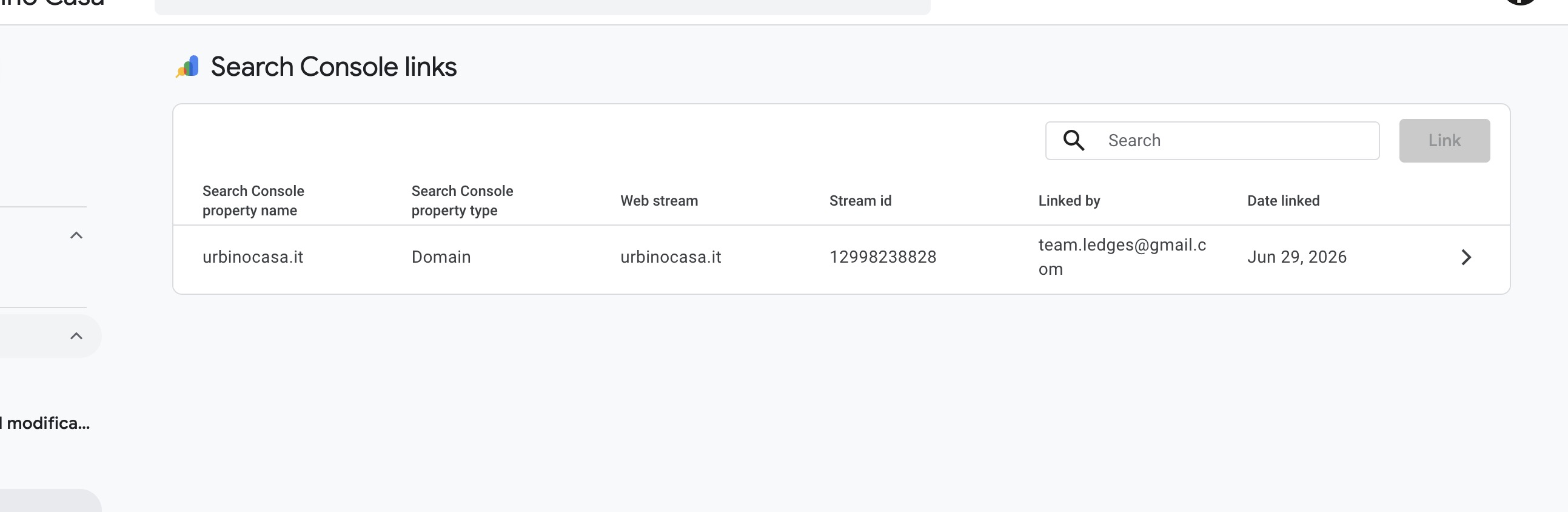
3. Link Google Business Profile
Linking the Business Profile (Profilo dell'attività su Google) brings local and Maps interaction data into GA4. Do this for customers with a physical location (real-estate agencies, studios, etc.).
Requirements: manager access to the Business Profile and edit permission on the GA4 property.
-
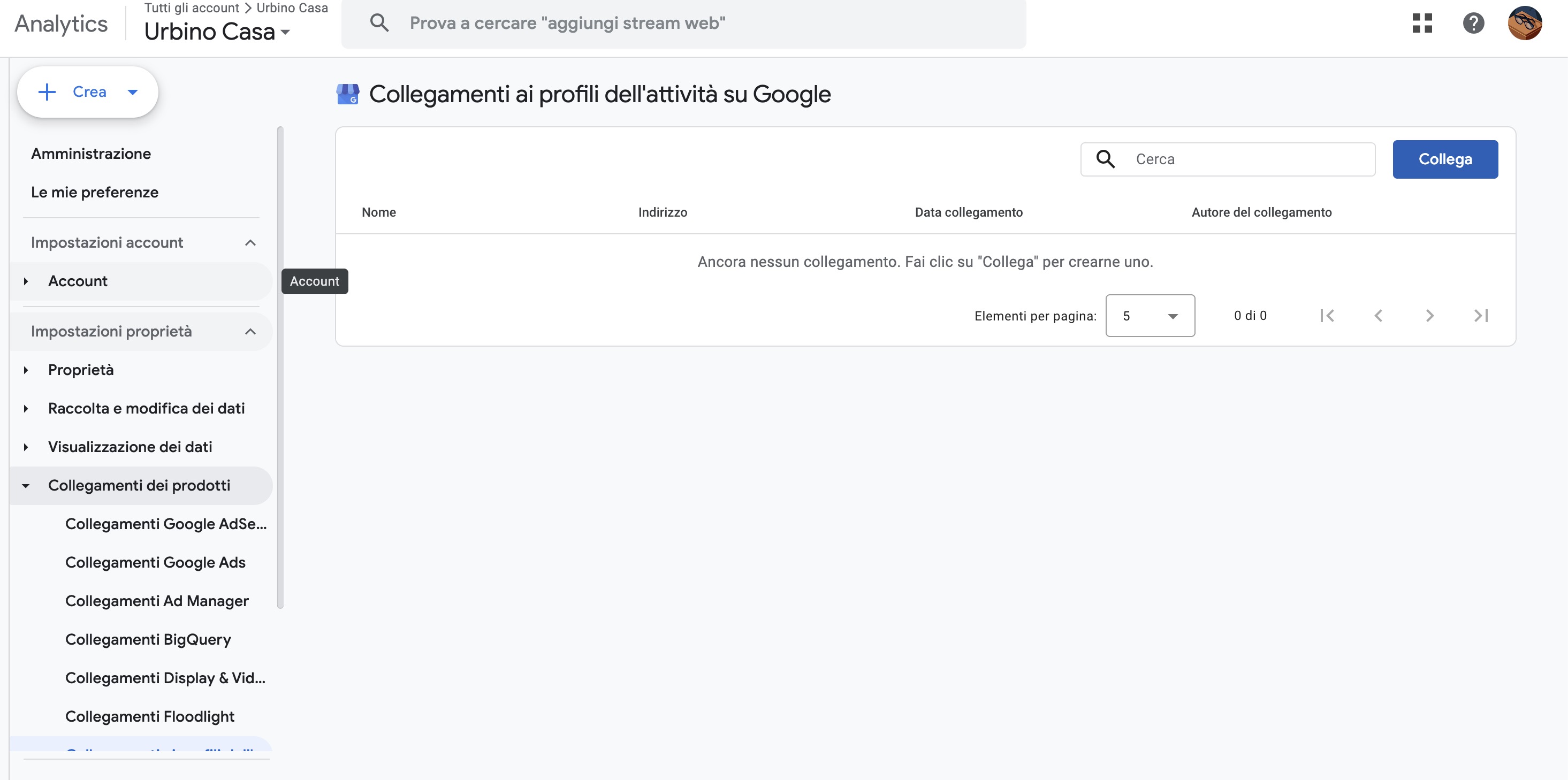
Go to Impostazioni proprietà → Collegamenti dei prodotti → Collegamenti ai profili dell'attività su Google, then click Collega (Link).
-
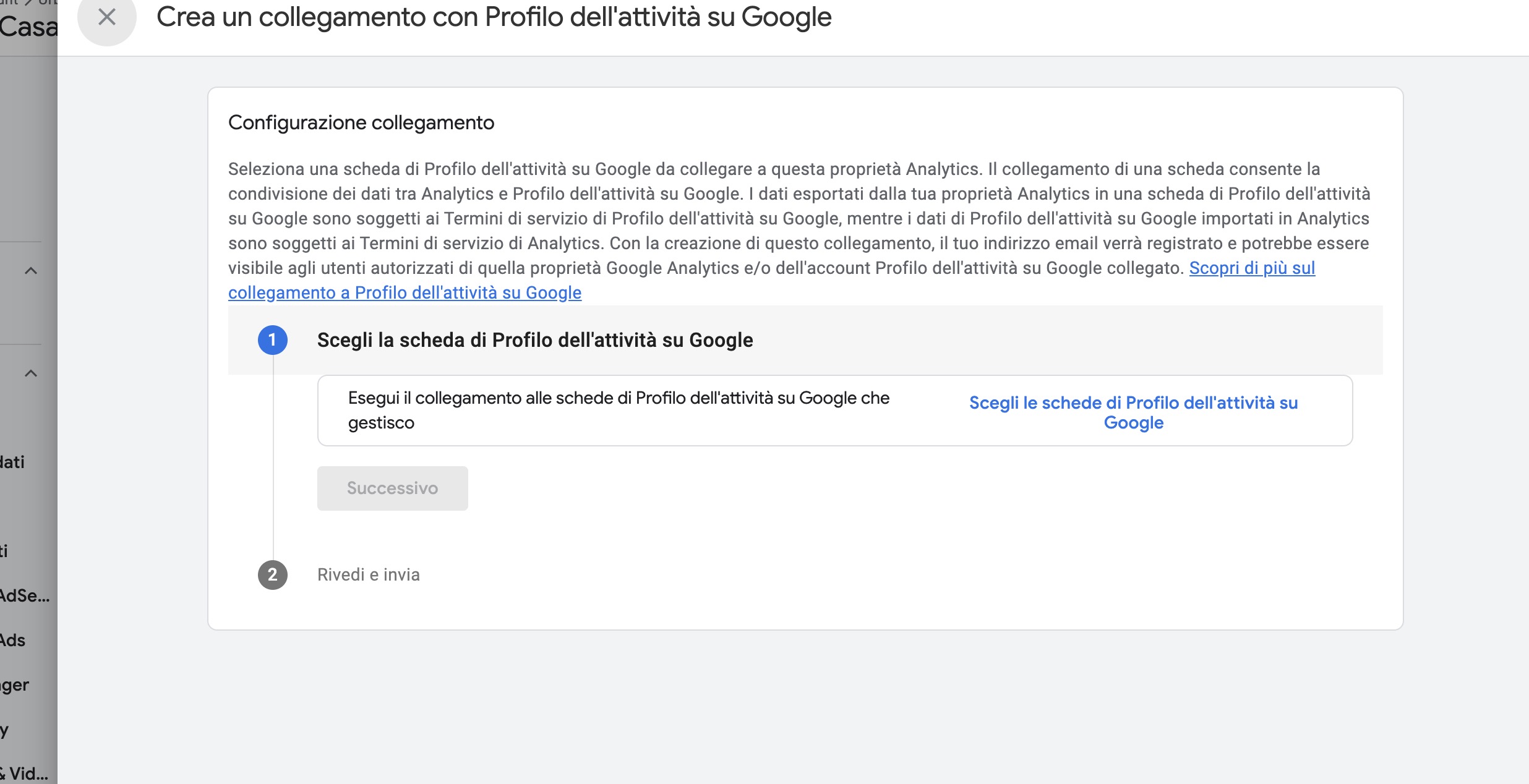
In Configurazione collegamento, click Scegli le schede di Profilo dell'attività su Google (Choose the Business Profile listings).
-
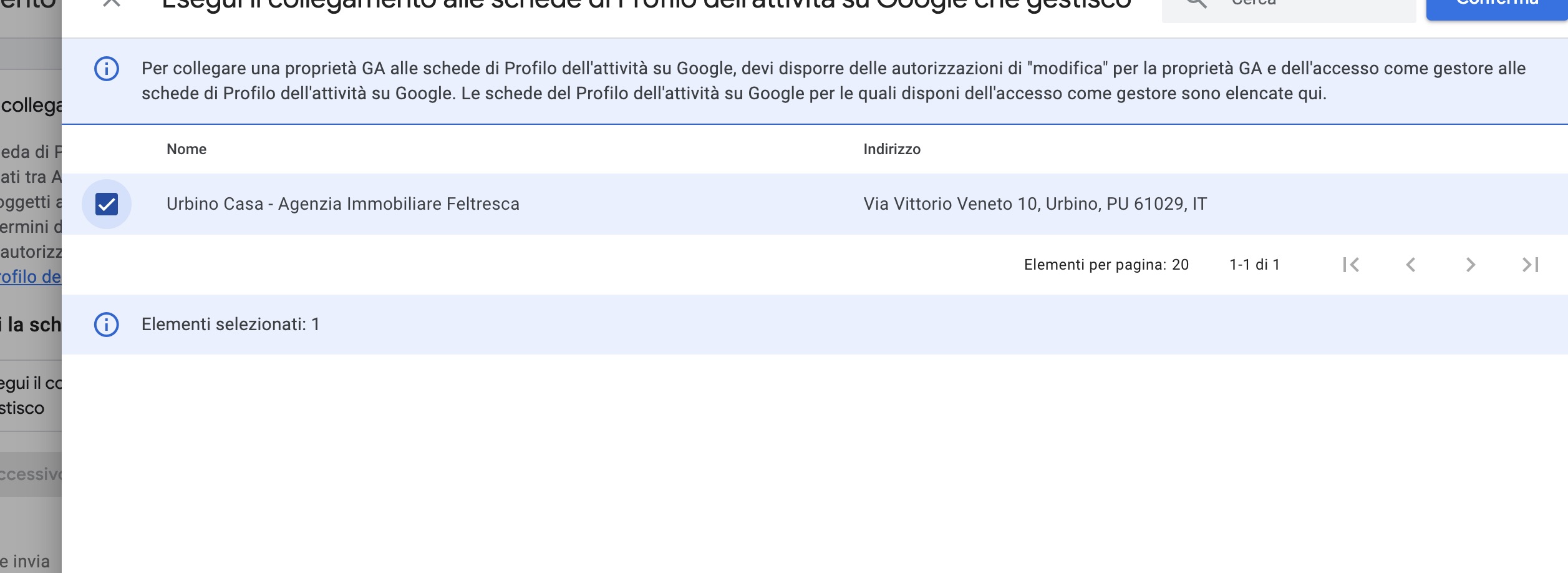
Select the customer's business profile (you must have manager access to it), then continue.
-
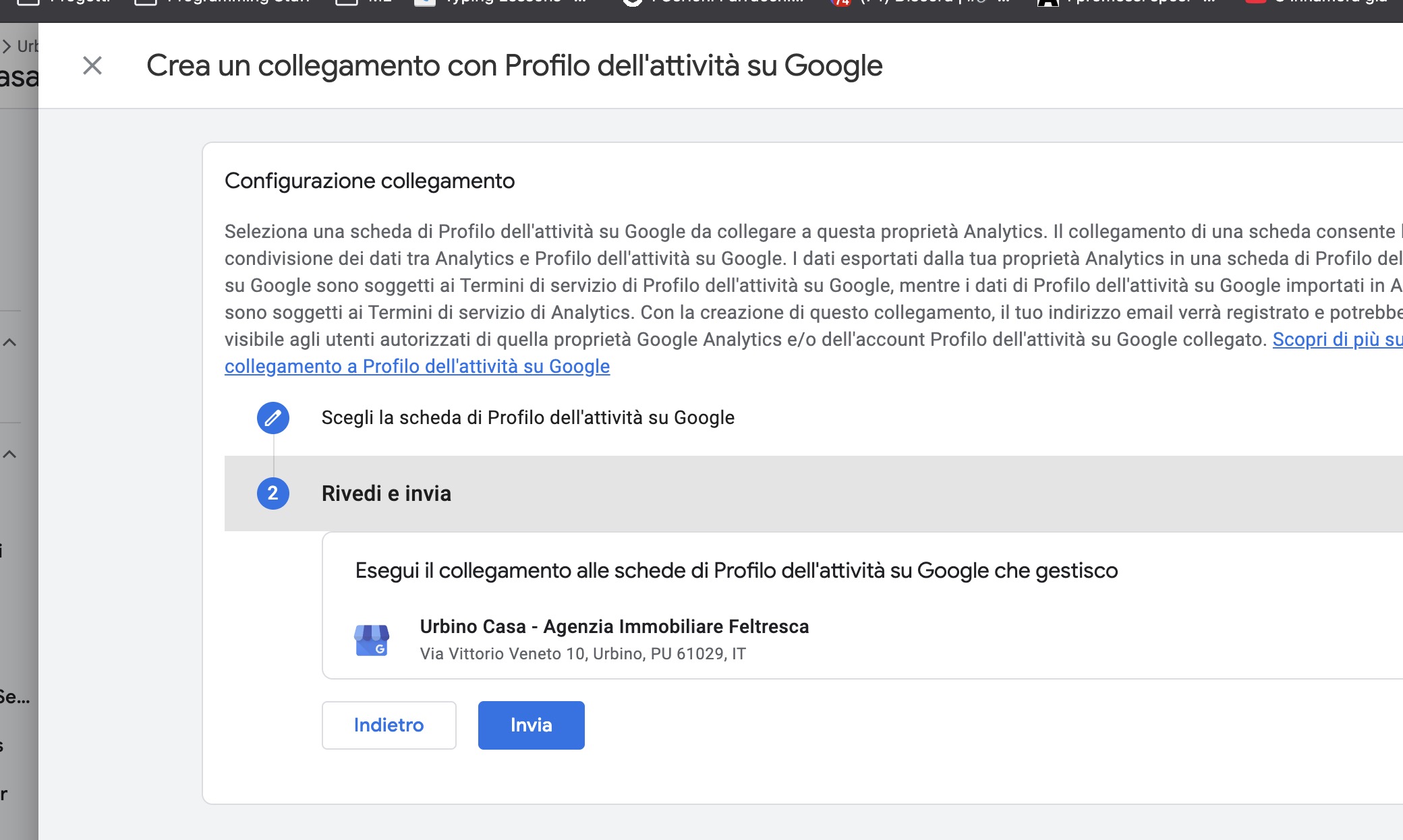
Review the summary and click Invia (Submit).
Checklist
| Step | When | Result |
|---|---|---|
Add team.ledges@gmail.com as Editor | Always | Ledges can manage the property |
| Link Google Search Console | Always | Organic search data flows into GA4 |
| Link Google Business Profile | If the customer has a physical location | Local / Maps data flows into GA4 |